How to file your RESICO monthly tax return
A simple guide to ISR and IVA for individuals
Before you start
Your RESICO monthly return comes prefilled in the SAT portal with most of the data from your invoices. Even so, you need to review it and file it online.
This includes income, expenses, discounts, refunds, tax withholdings and other transactions already recorded in the system.
Important: Do not make manual changes unless you have valid supporting documentation.
Any adjustment must be backed by invoices, a credit note, a payment complement, a bank statement, a payment receipt or another official document that explains the difference.
If you had no income during the month, you still need to file the return. In that case, file it with income of 0. The general deadline is the 17th of the following month. Depending on the sixth digit of your RFC, you can have 1 to 5 extra business days to file it.
The SAT portal is only available in Spanish. We keep the original Spanish names of the screens, tabs and buttons so you can find them.
Go to the SAT portal
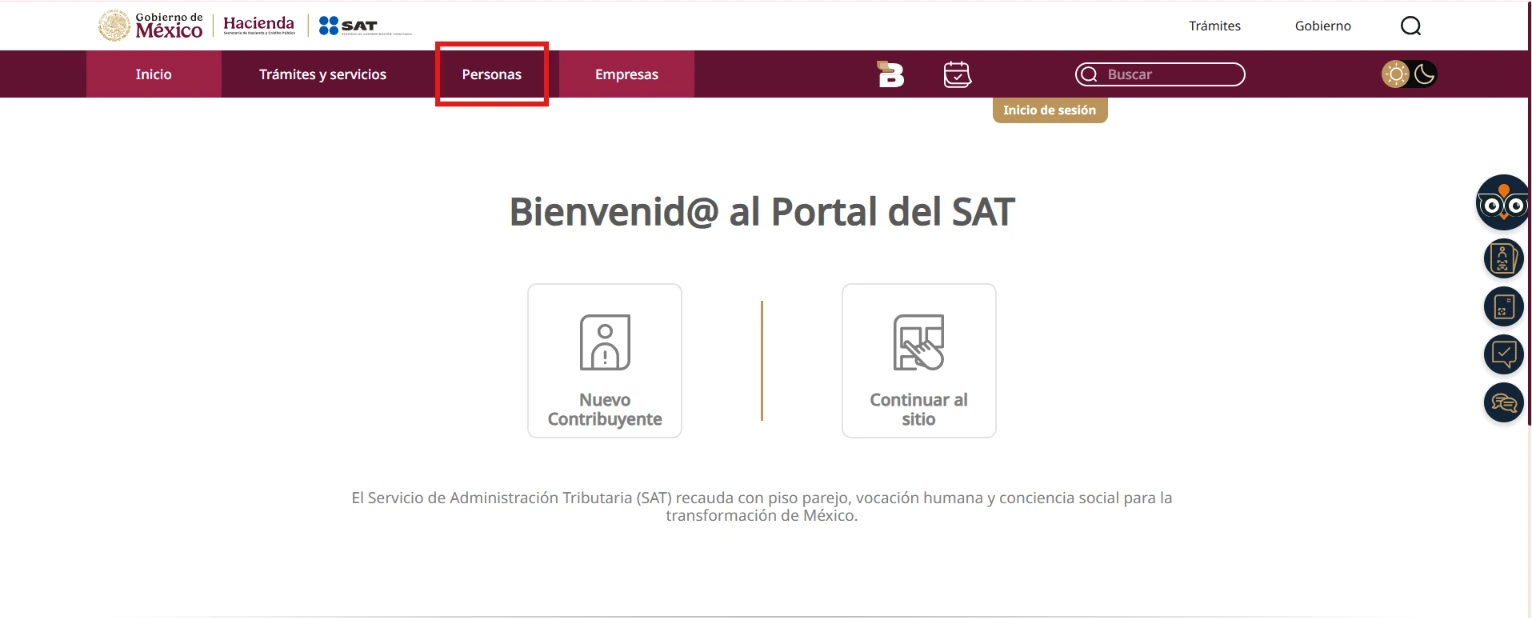
1. Open sat.gob.mx. In the top menu, select Personas
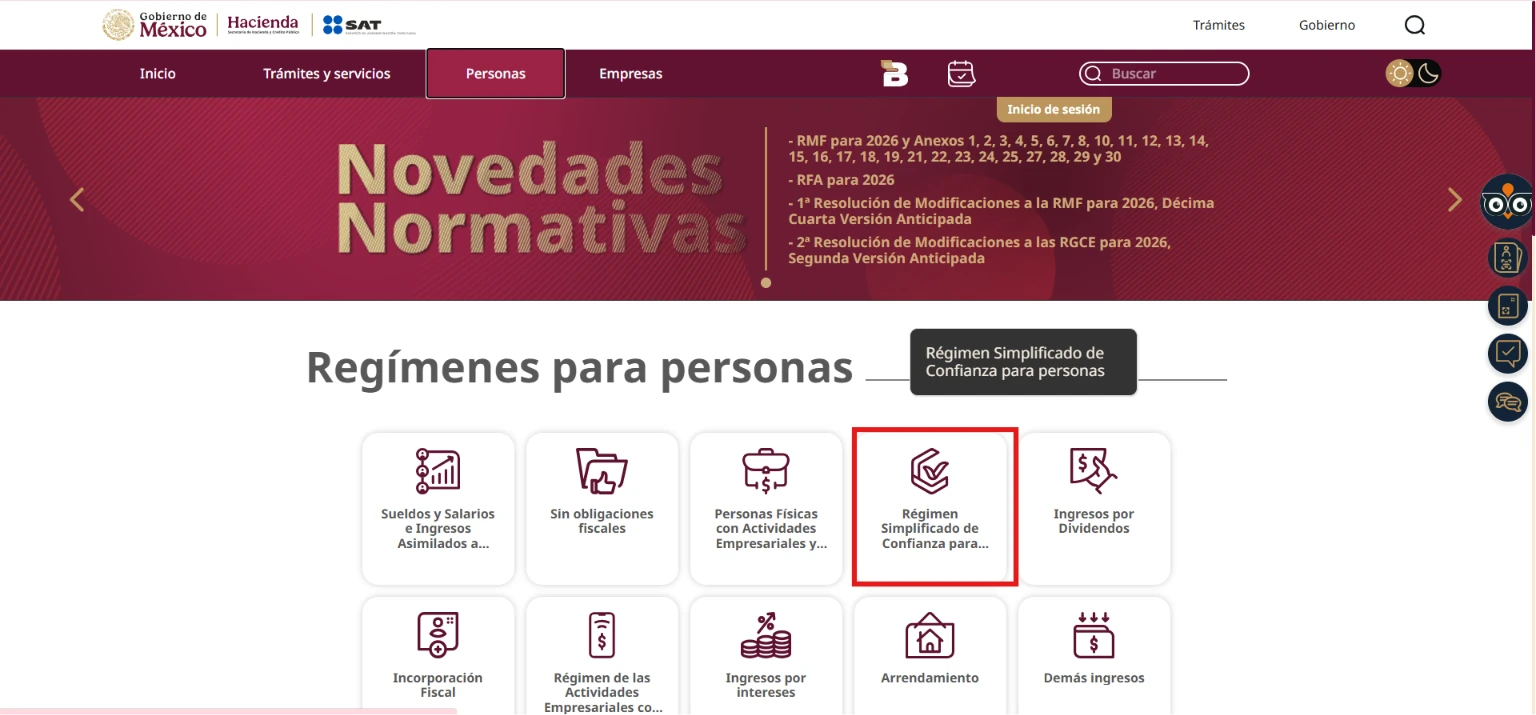
2. Select Régimen Simplificado de Confianza
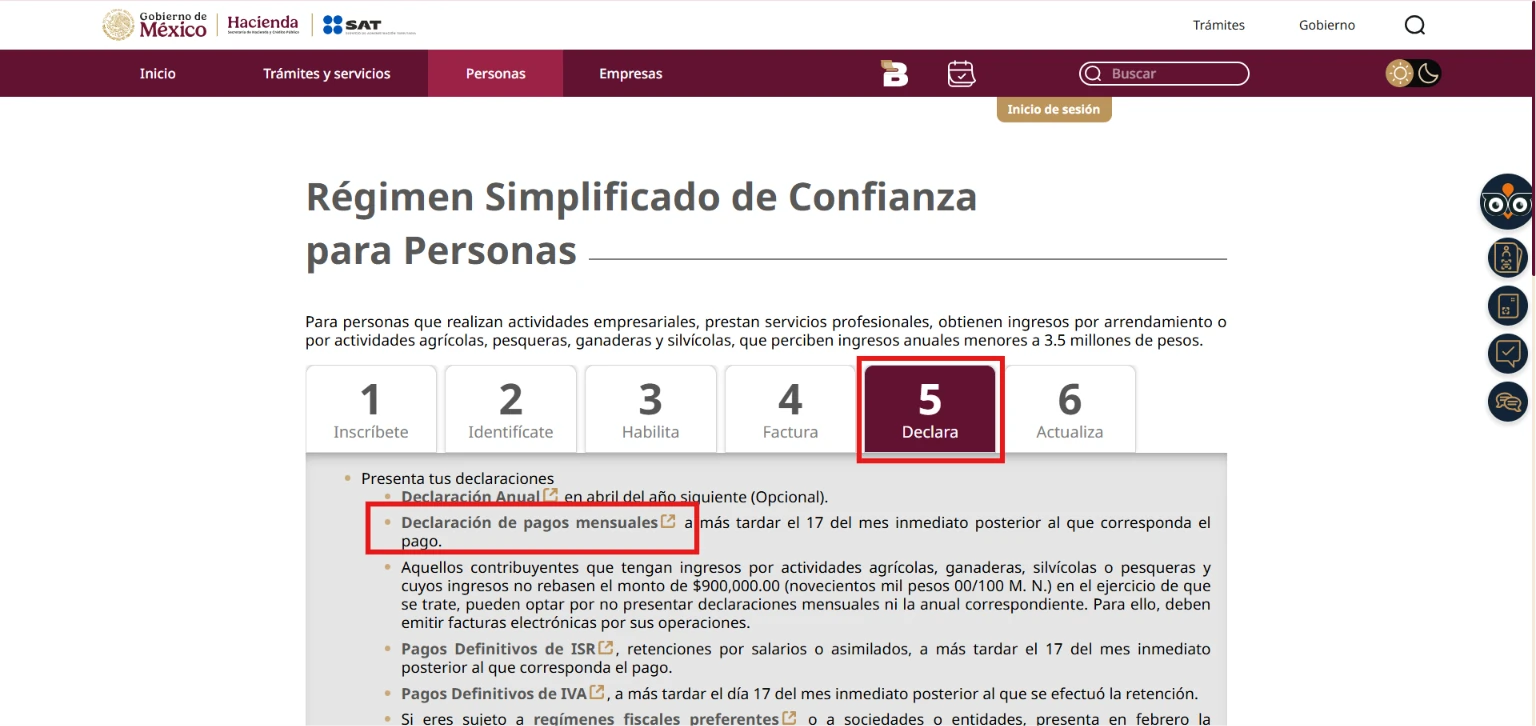
3. In this section, open the Declara tab. In the grey box, select Declaración de pagos mensuales
Log in
You can log in with your SAT password or with your e.firma.
With your SAT password
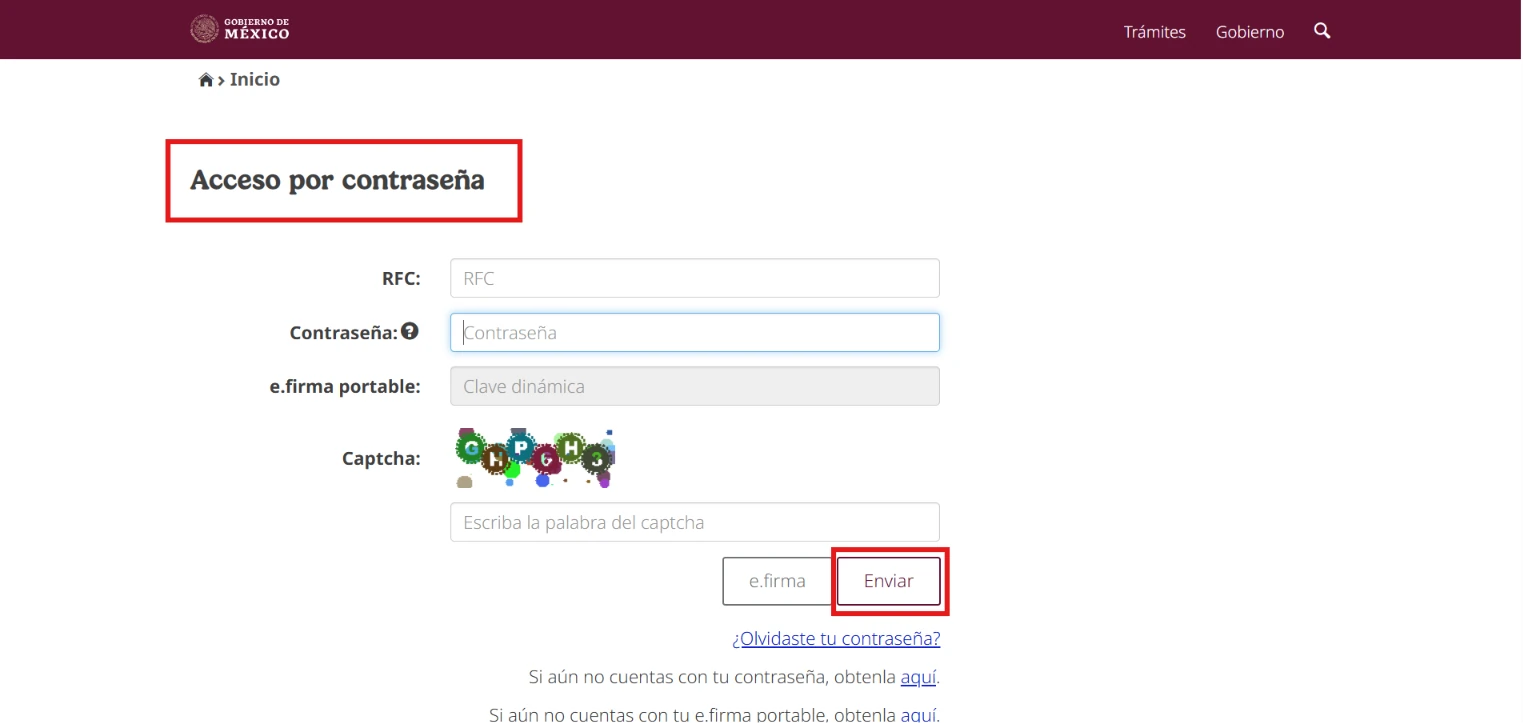
Enter your RFC, your SAT password and the Captcha code. Then select Enviar.
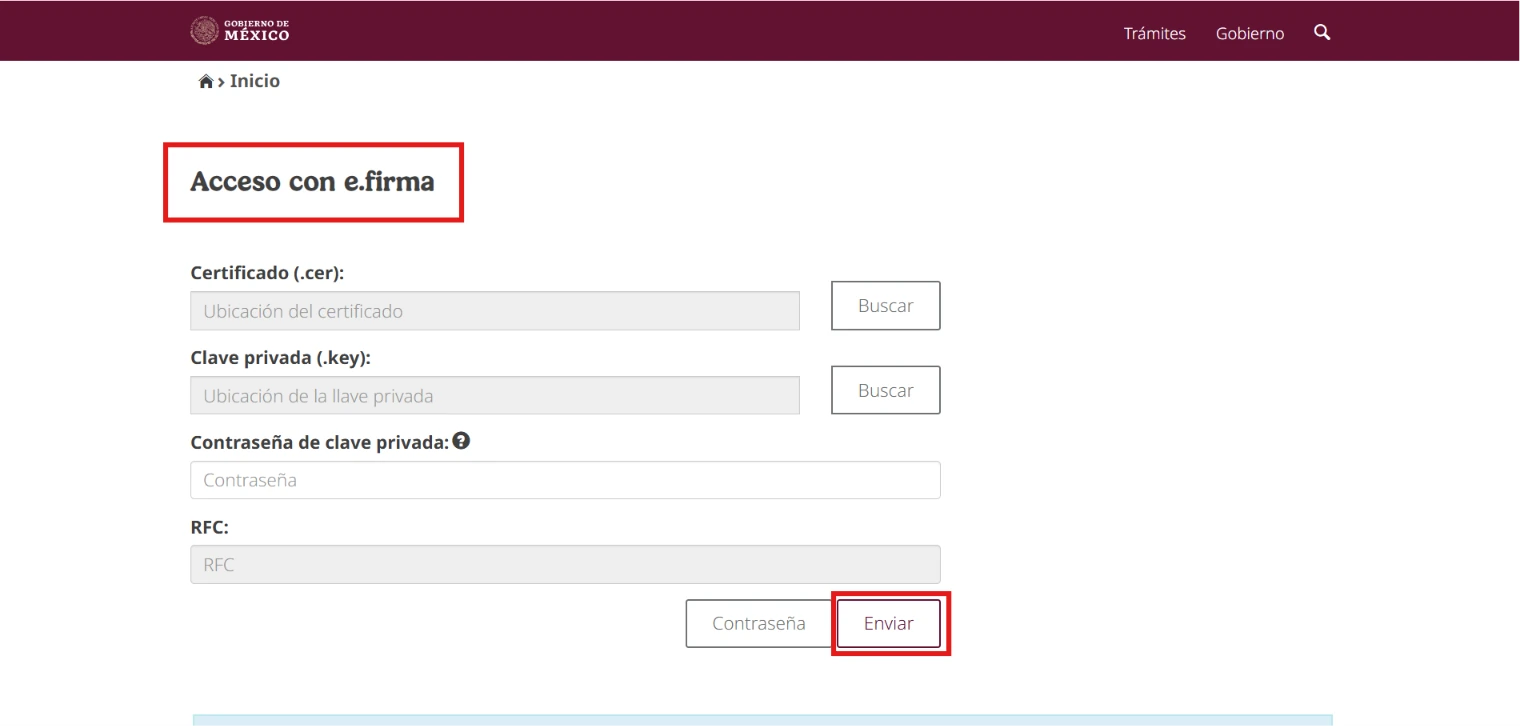
With your e.firma
Select Buscar to upload your certificate (.cer) and your private key (.key). Enter your private key password and select Enviar.
Set up the return
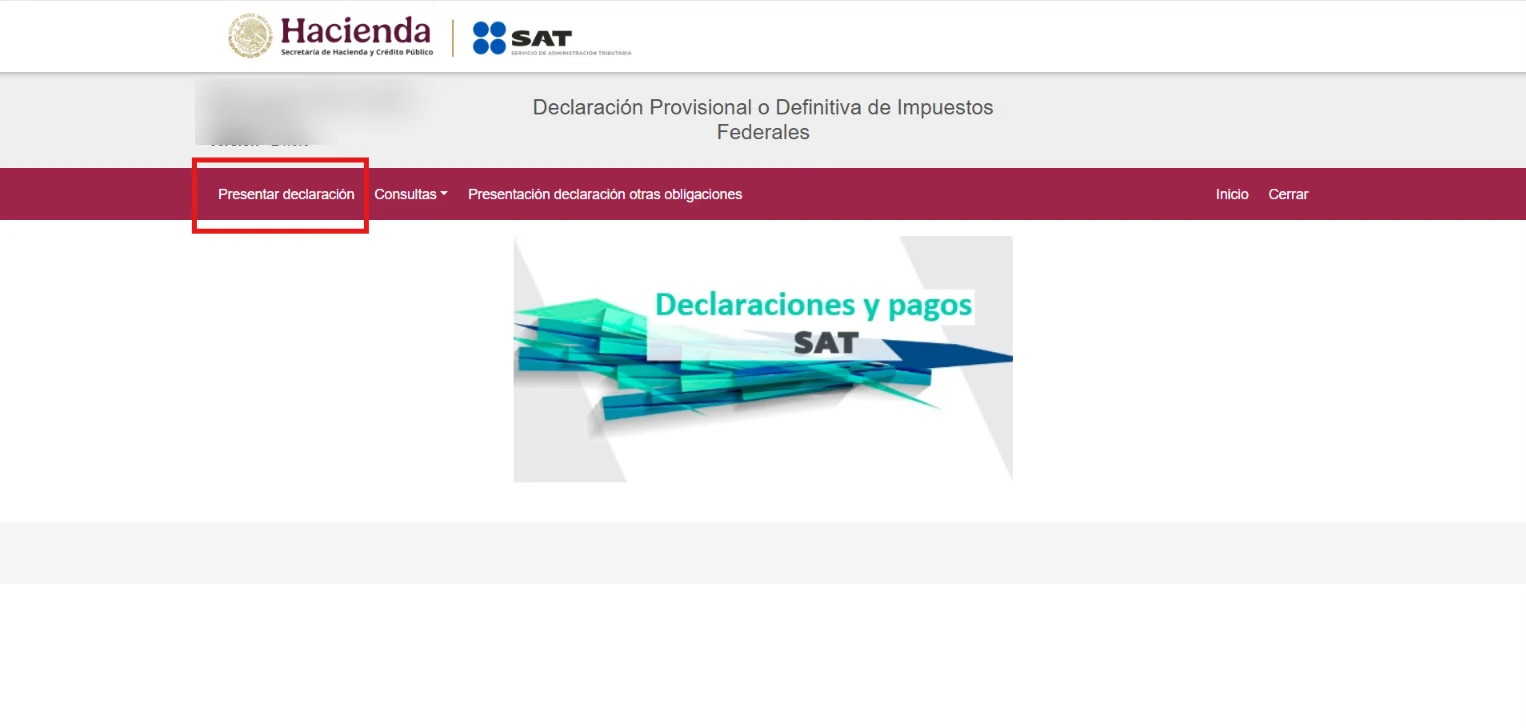
Return main menu
Once you log in, you will see the main menu of the return. To file a new one, select Presentar declaración.
Basic information
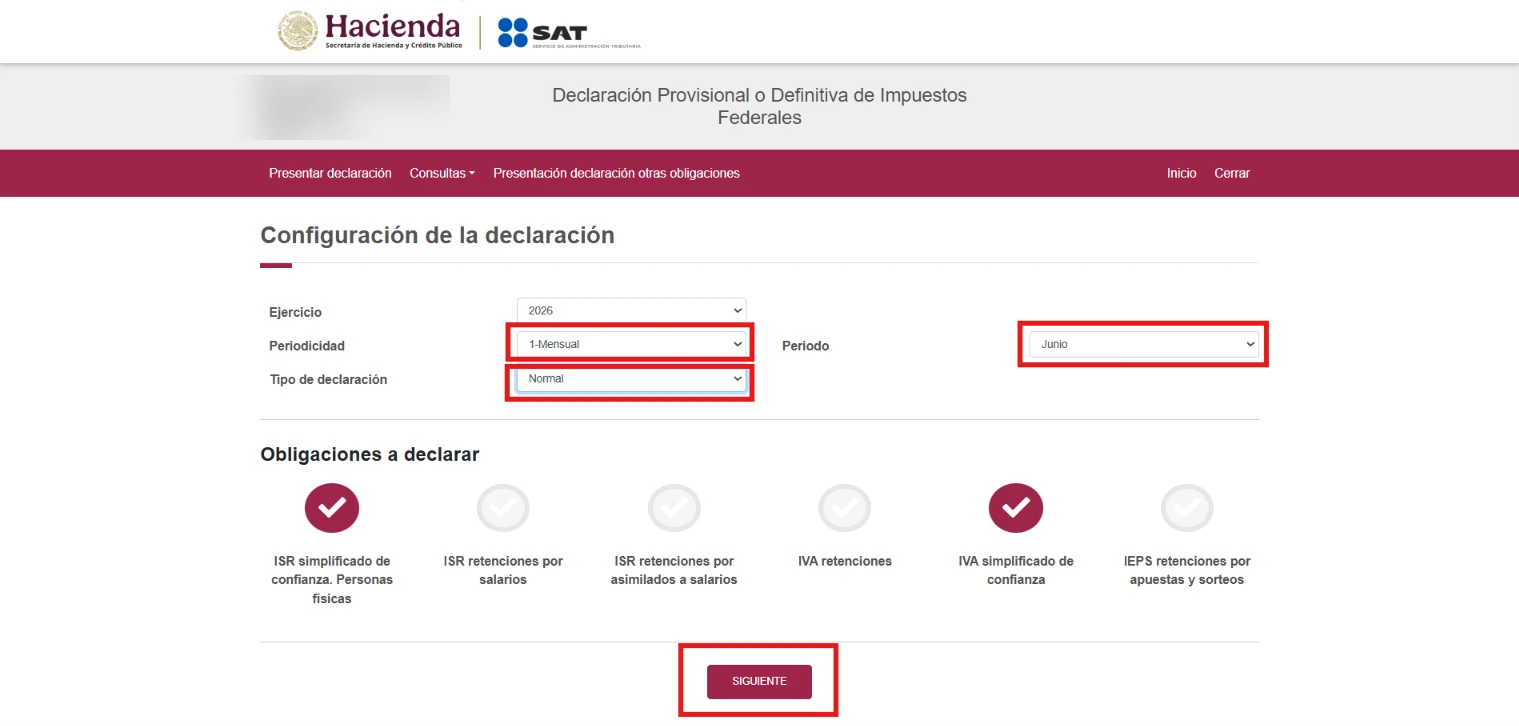
On the Configuración de la declaración screen, fill in this basic information:
• Ejercicio: the tax year. For example, if you are filing May 2026, select 2026
• Periodicidad: choose Mensual
• Periodo: the month you are filing. It has to match the month of your invoices
• Tipo de declaración: choose Normal for your monthly return. If you need to correct a return you already filed, choose Complementaria
The system will show your registered tax obligations. You can compare them with your Constancia de Situación Fiscal. For most individuals under RESICO, these are:
• Monthly provisional ISR payment
• Monthly final IVA payment
Review the obligations and select Siguiente.
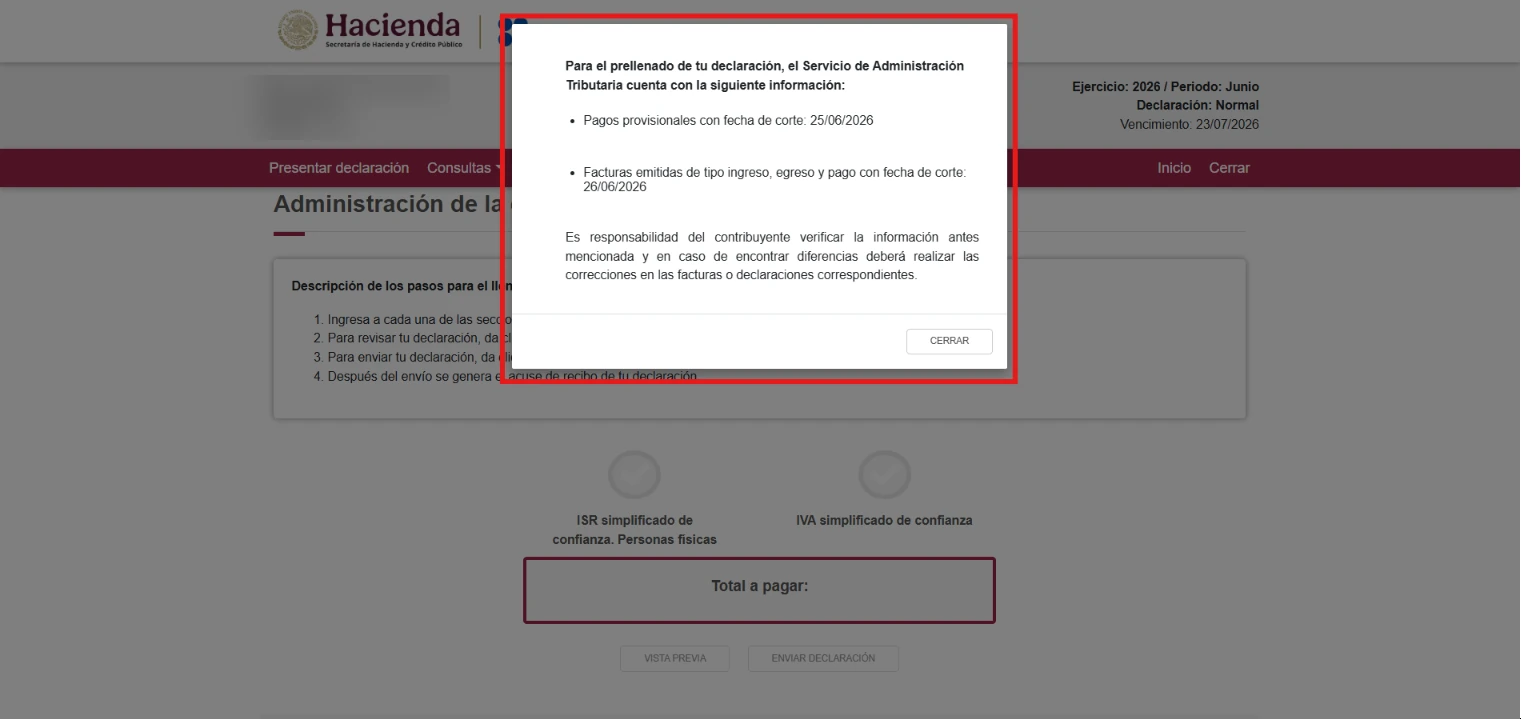
You will see a pop-up with the source and cut-off date of your prefilled information. Select Cerrar.
Return management panel
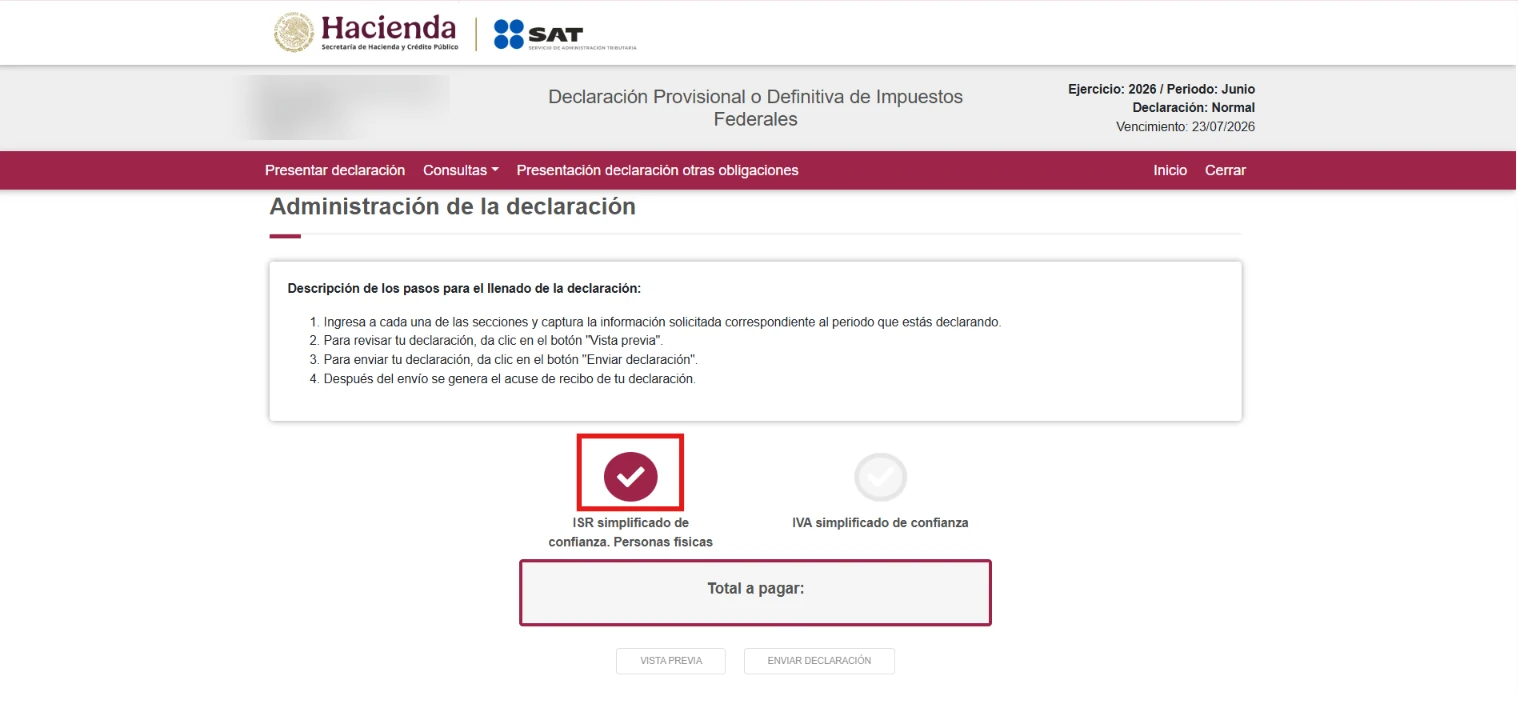
On the Administración de la declaración screen, you will see your selected obligations and the total amount due, shown as Total a pagar. Choose the icon of an obligation to start.
We recommend this order: fill in the ISR, go back to the panel, fill in the IVA, review Total a pagar and send the return.
Open ISR simplificado de confianza. Personas físicas.
Fill in the ISR
Ingresos tab
Review the detail of your income. The fields marked in red are required. If a field marked in red has the Capturar button, select it to enter the breakdown.
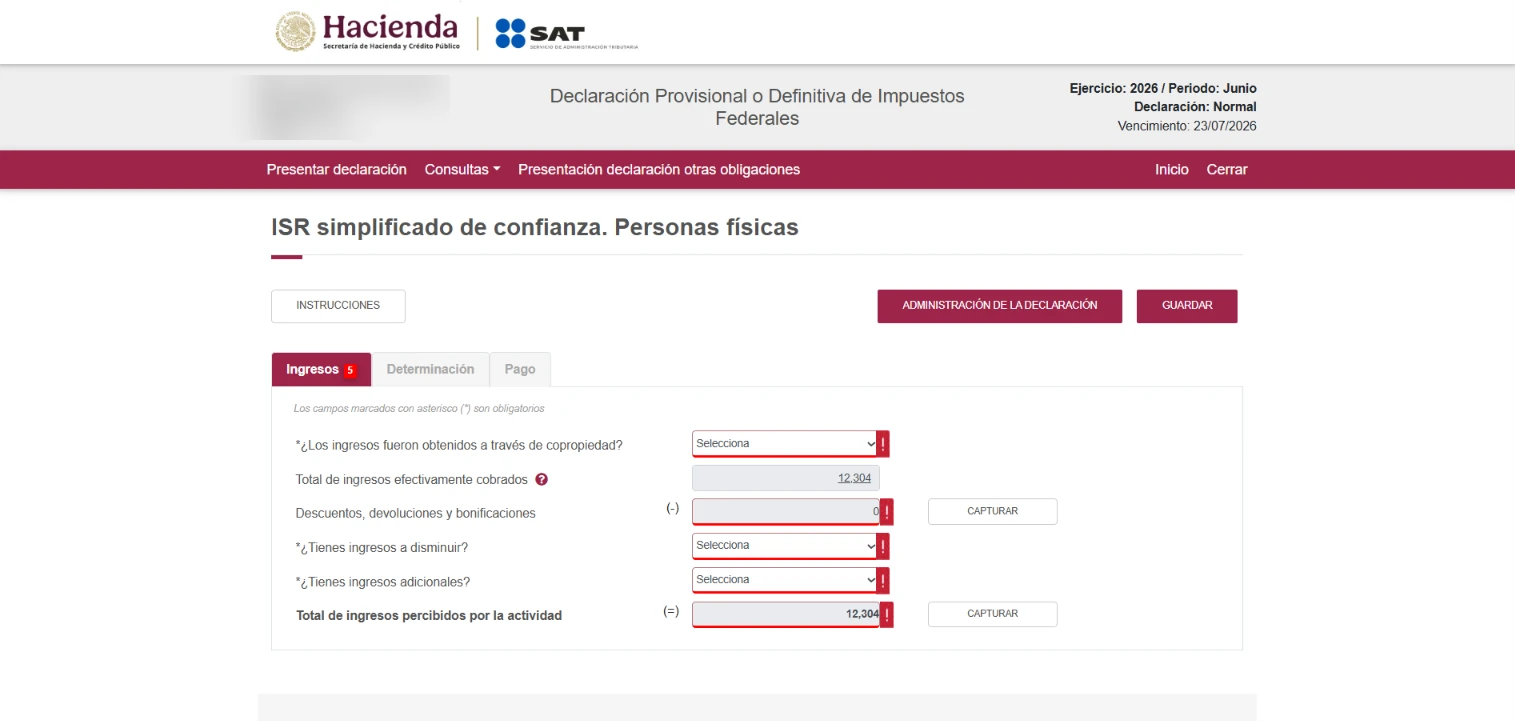
• ¿Los ingresos fueron obtenidos a través de copropiedad? Choose No, unless the income comes from a formal business co-ownership
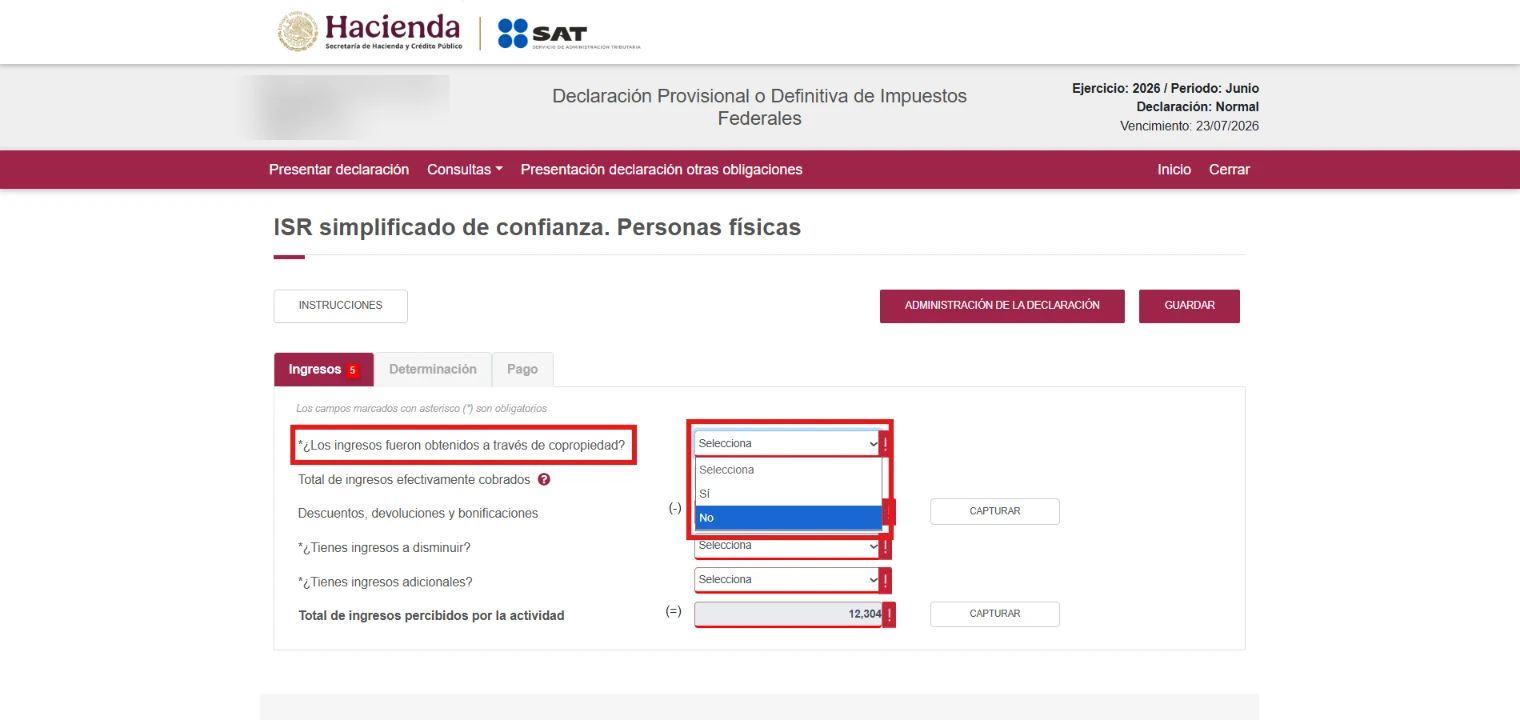
• Descuentos, devoluciones y bonificaciones. These are the discounts, refunds and rebates of the month. If you have any, they must be backed by egreso invoices. If you do not have any, leave 0
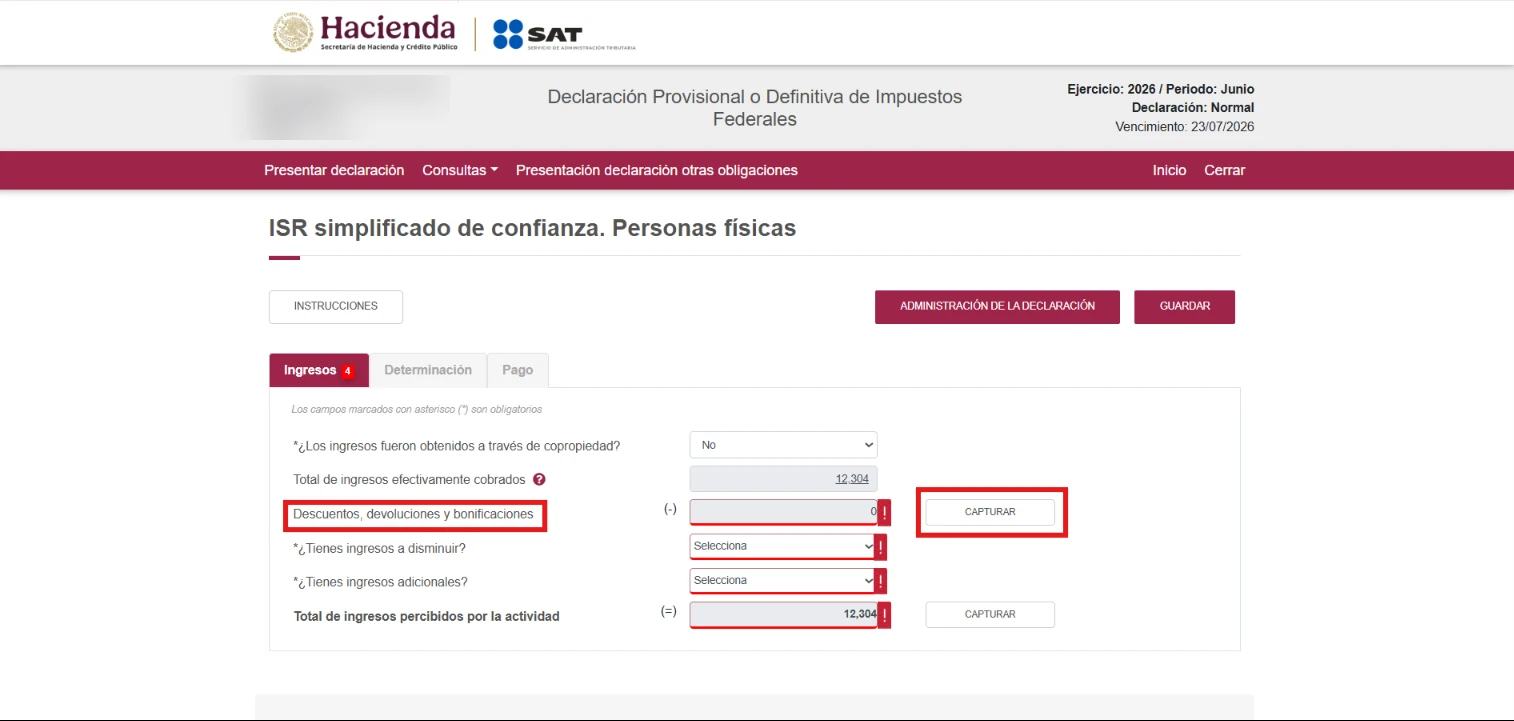
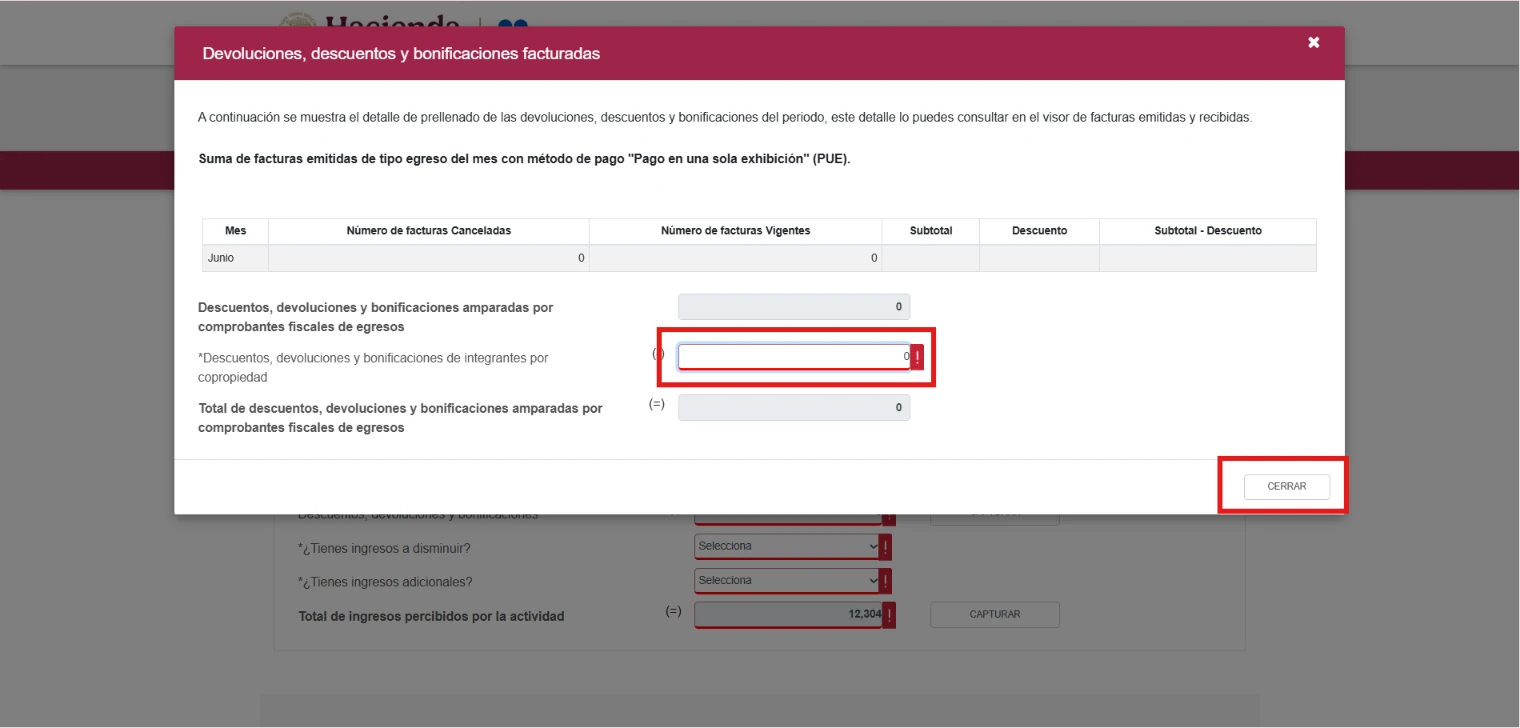
• ¿Tienes ingresos a disminuir? Choose No, unless you have specific documentation that allows you to reduce income
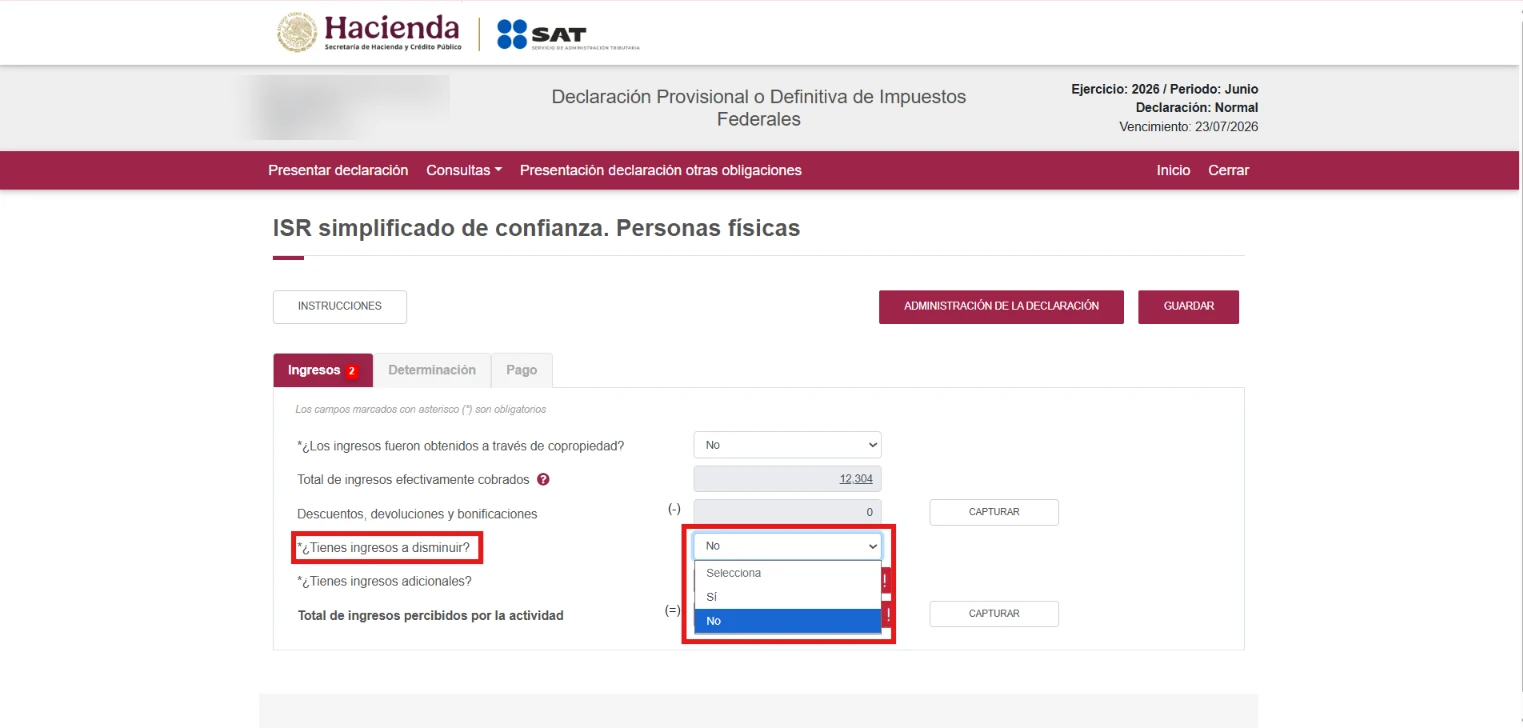
• ¿Tienes ingresos adicionales? This is additional income that was not automatically included in the return. If your invoices are correct and the SAT already updated the information, choose No
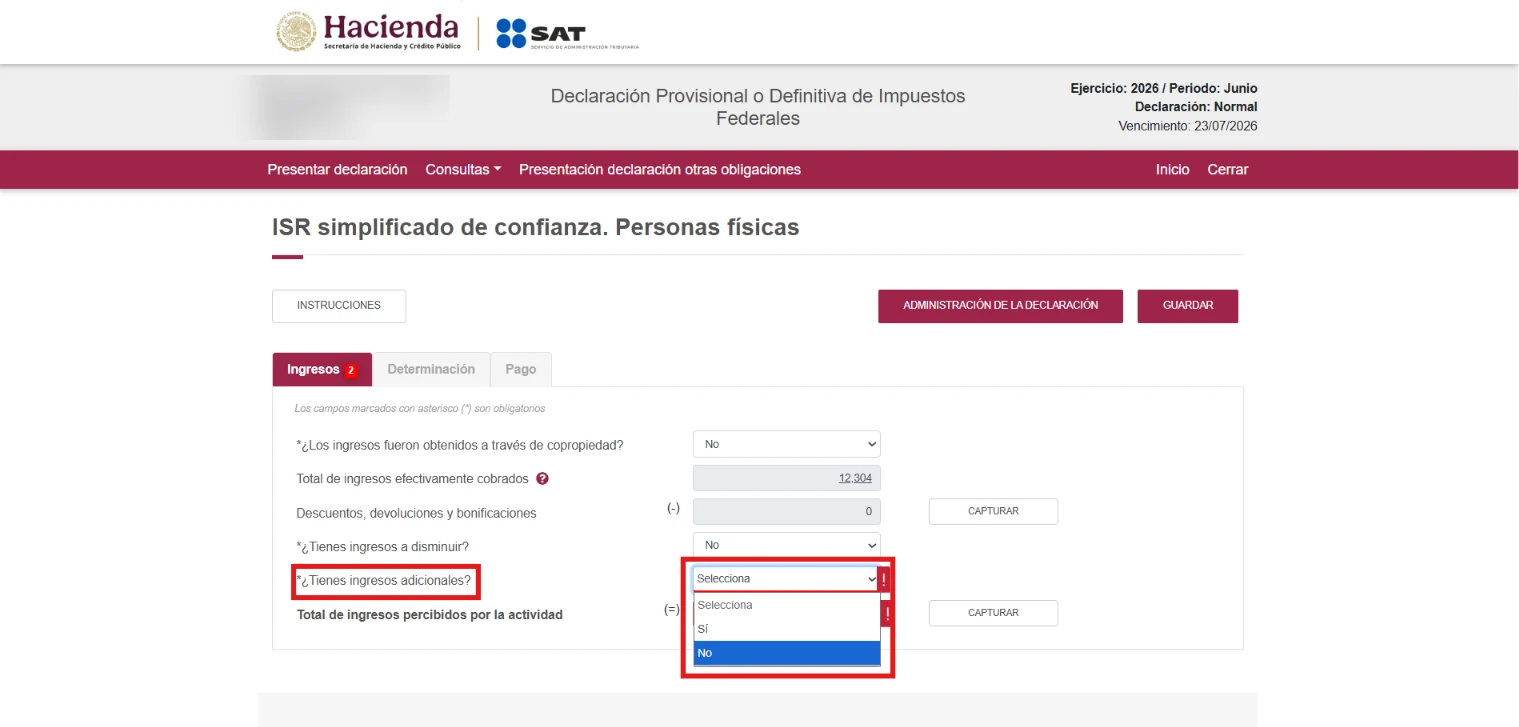
Important: Do not manually add discounts, refunds or additional income without invoices to back them up.
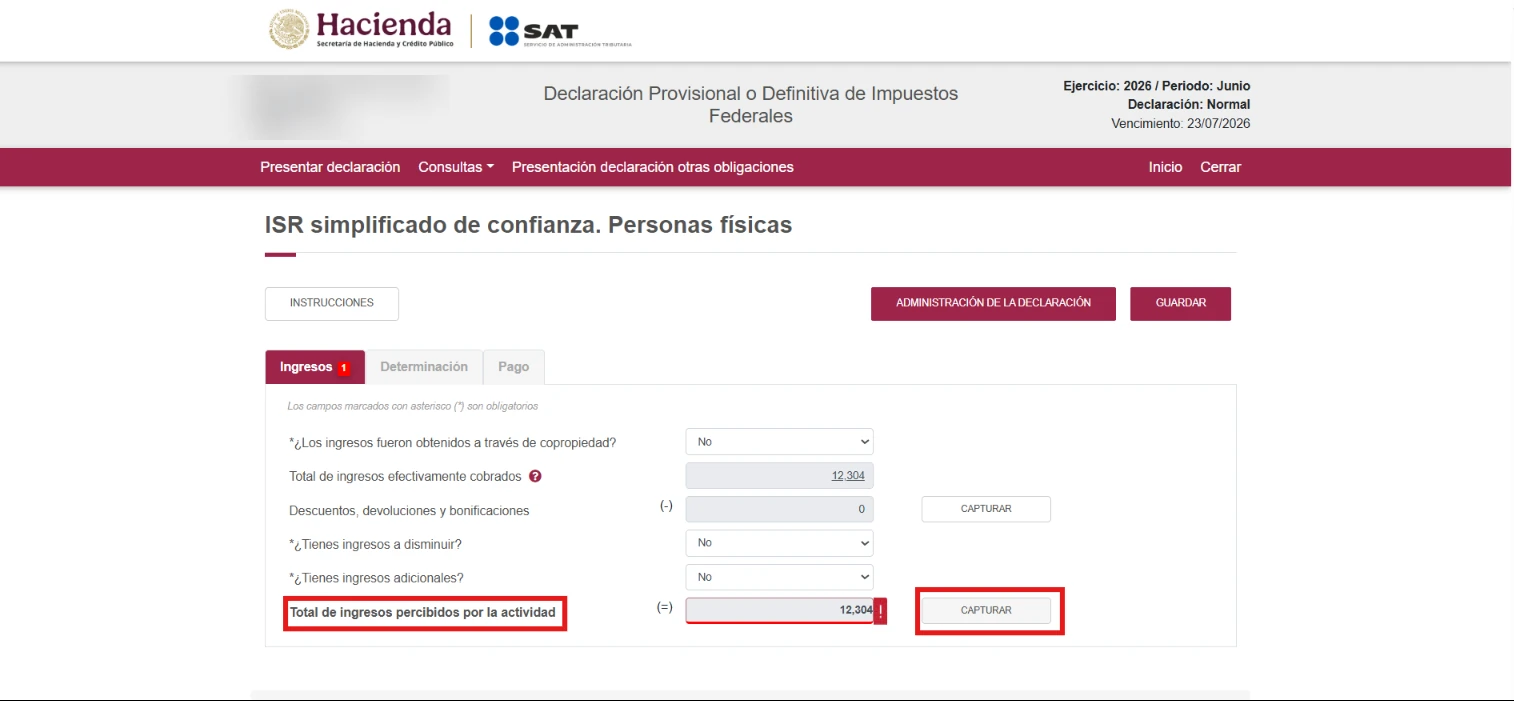
Total de ingresos percibidos por la actividad. The system calculates this total automatically. To enter the breakdown:
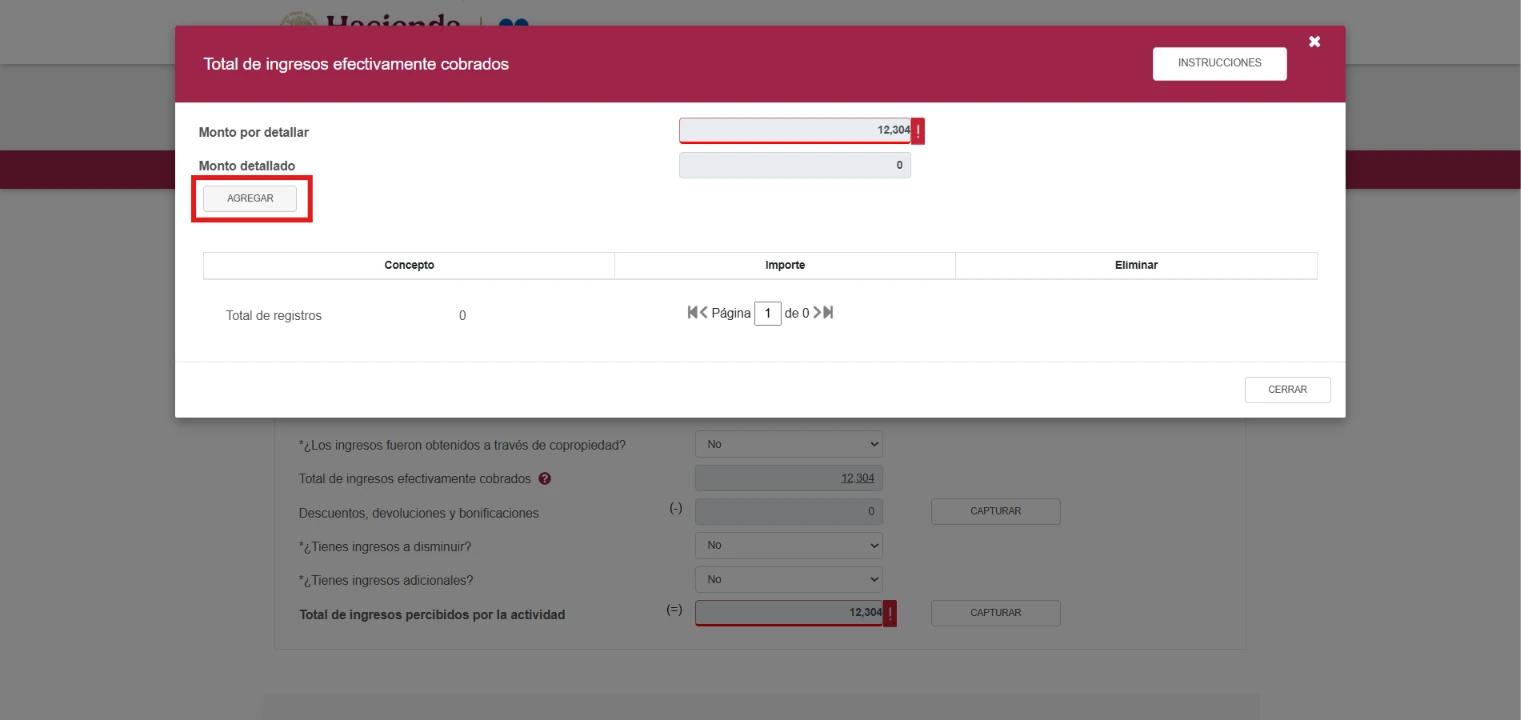
1. Select Capturar
2. Choose Agregar in the window that opens
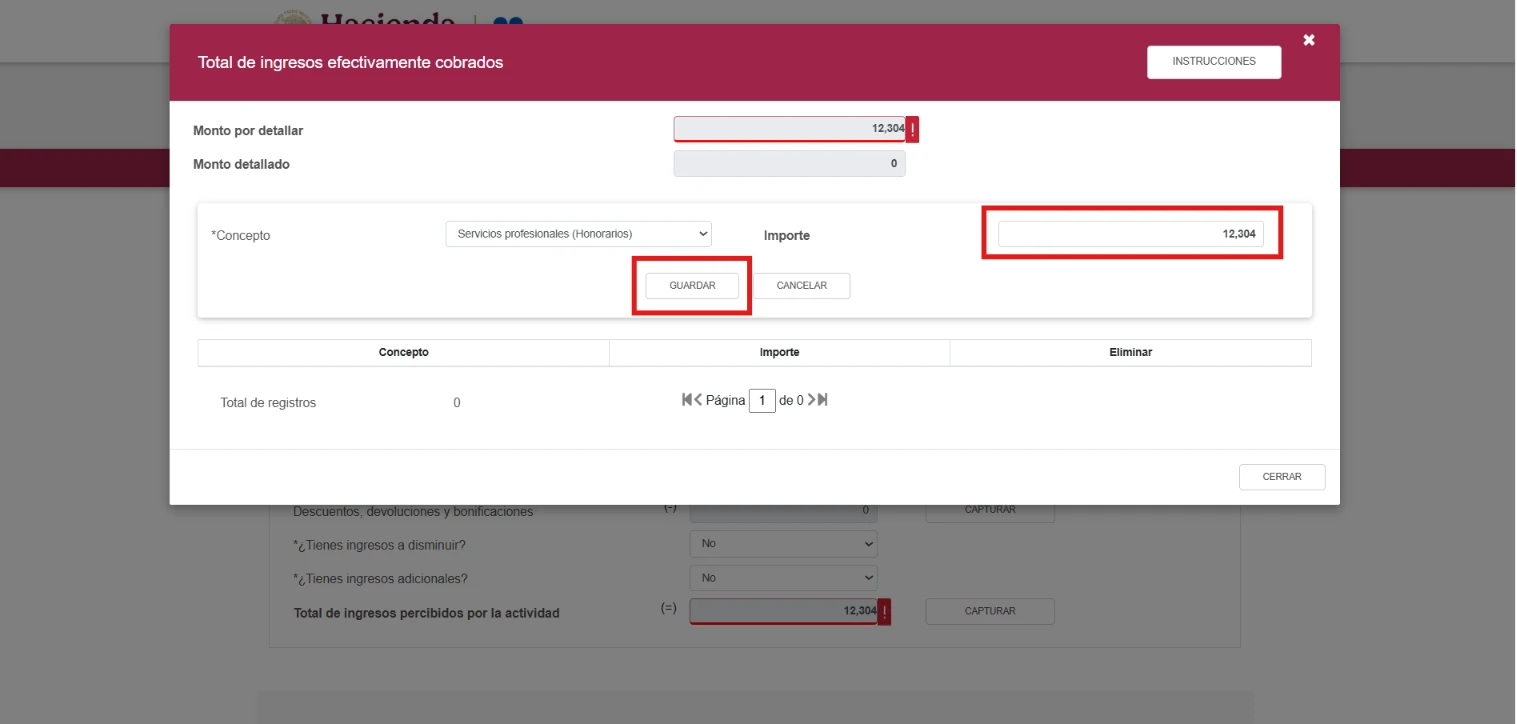
3. Select the income type that applies, for example business activity, professional services or leasing
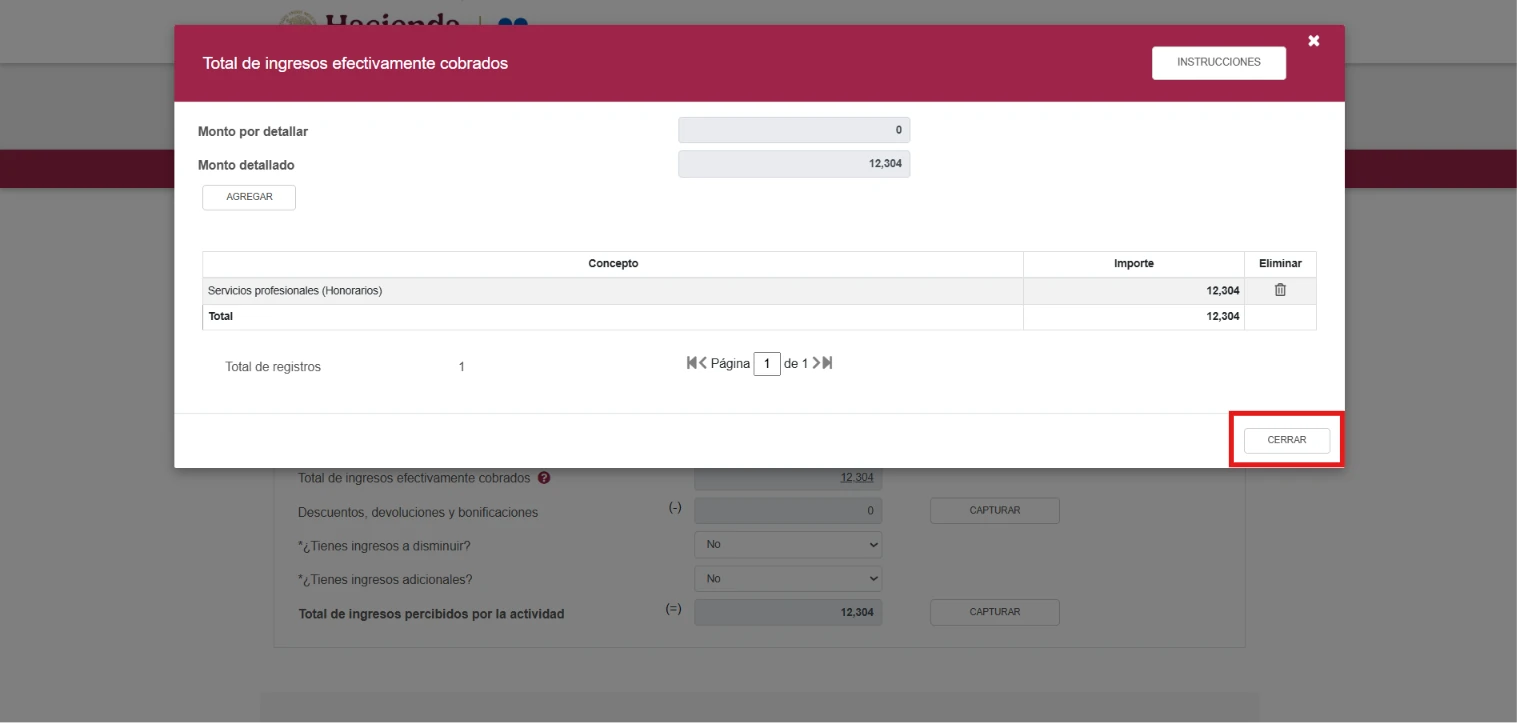
4. Enter the amount, select Guardar and then Cerrar
Determinación tab
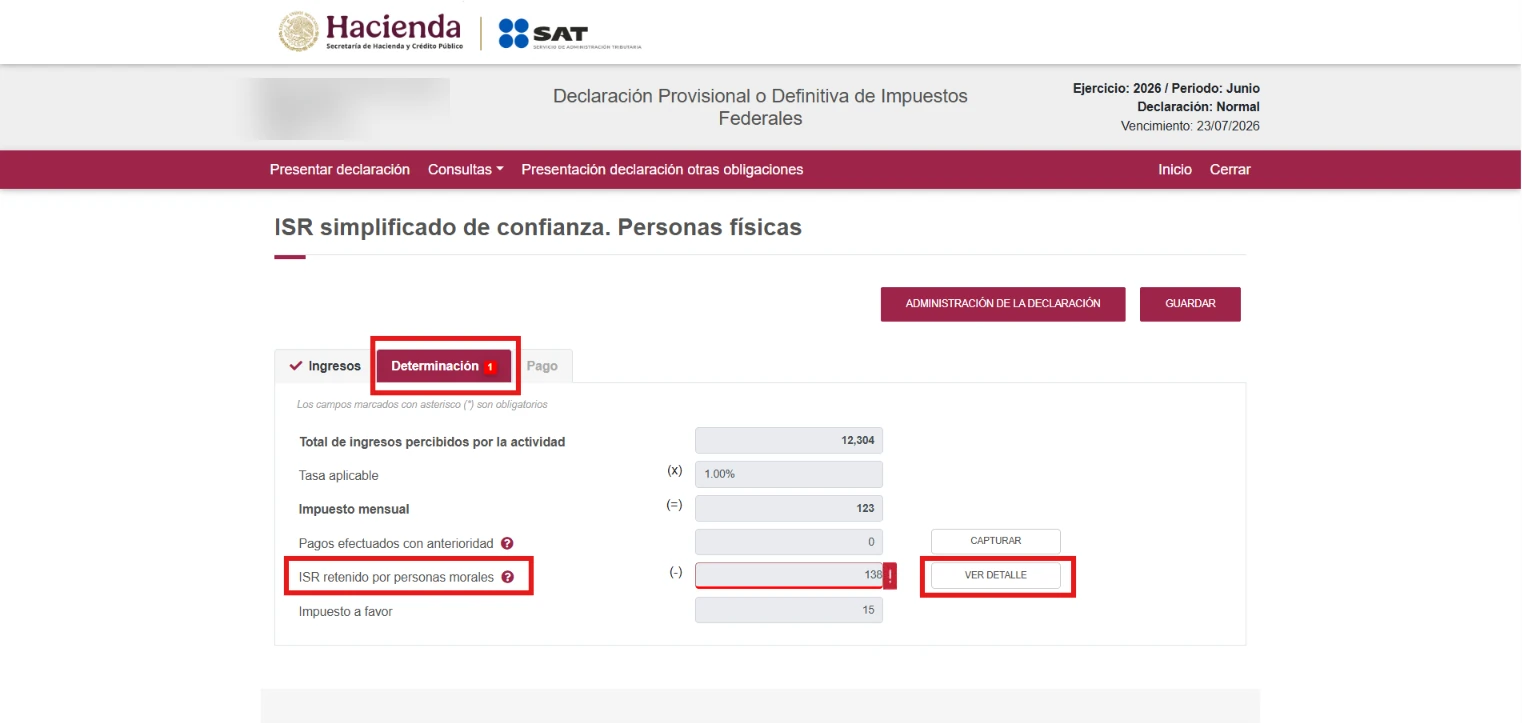
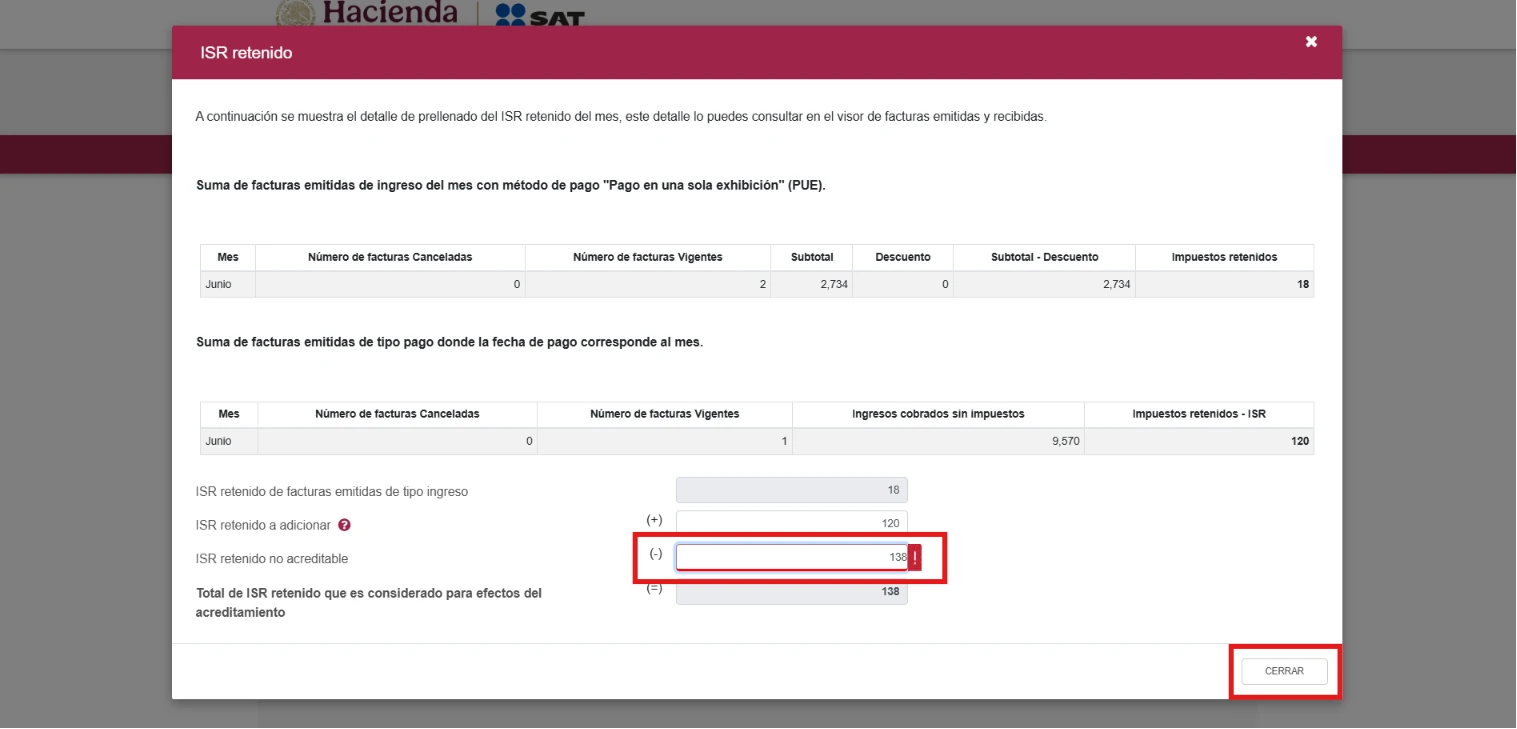
Review the ISR calculated automatically, especially the prefilled amount of ISR retenido. If you issued invoices to legal entities, such as companies, compare that amount with the ISR withholding shown on those invoices. If they show no ISR withholding, enter 0.
Pago tab
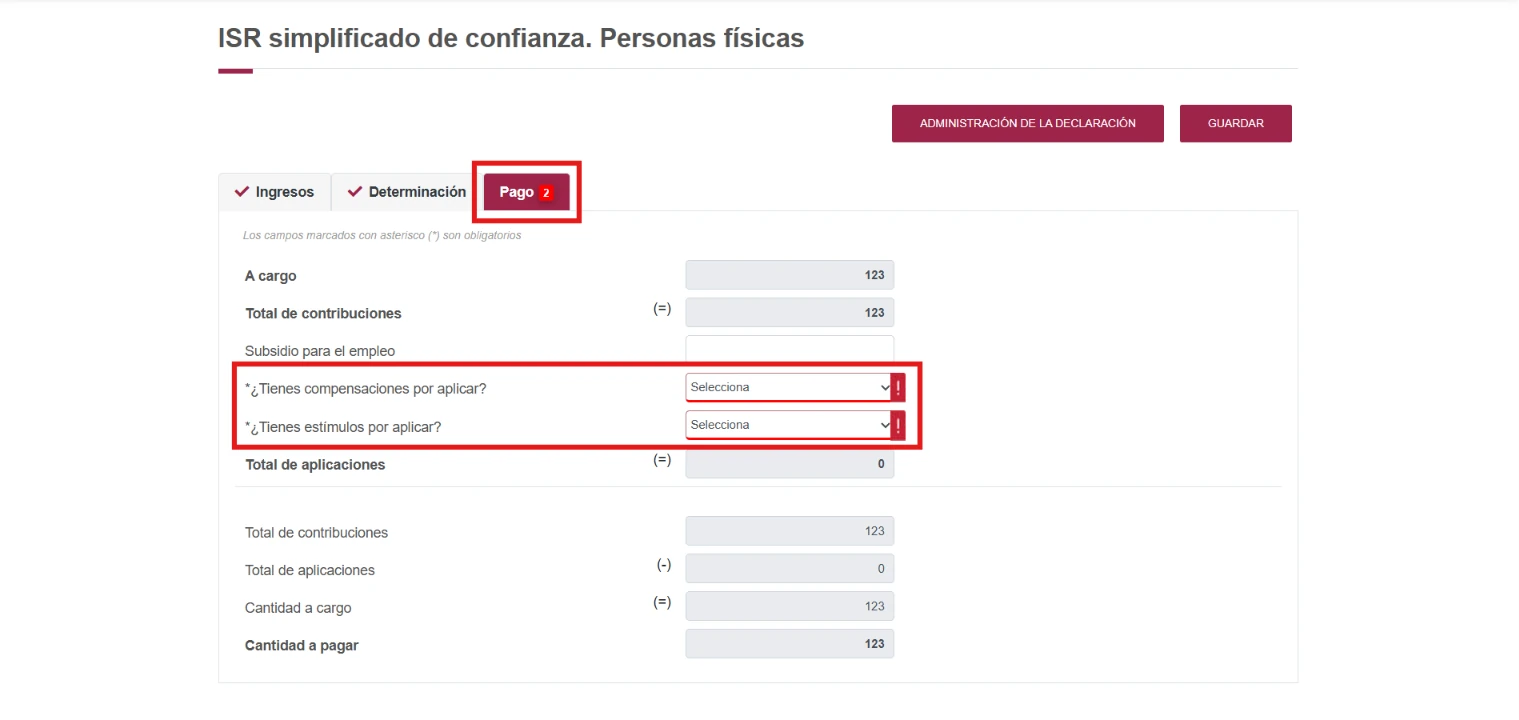
Review the final tax due, shown as A cargo. If you do not have an authorized offset or tax incentive, answer No to the questions ¿Tienes compensaciones por aplicar? and ¿Tienes estímulos por aplicar?.
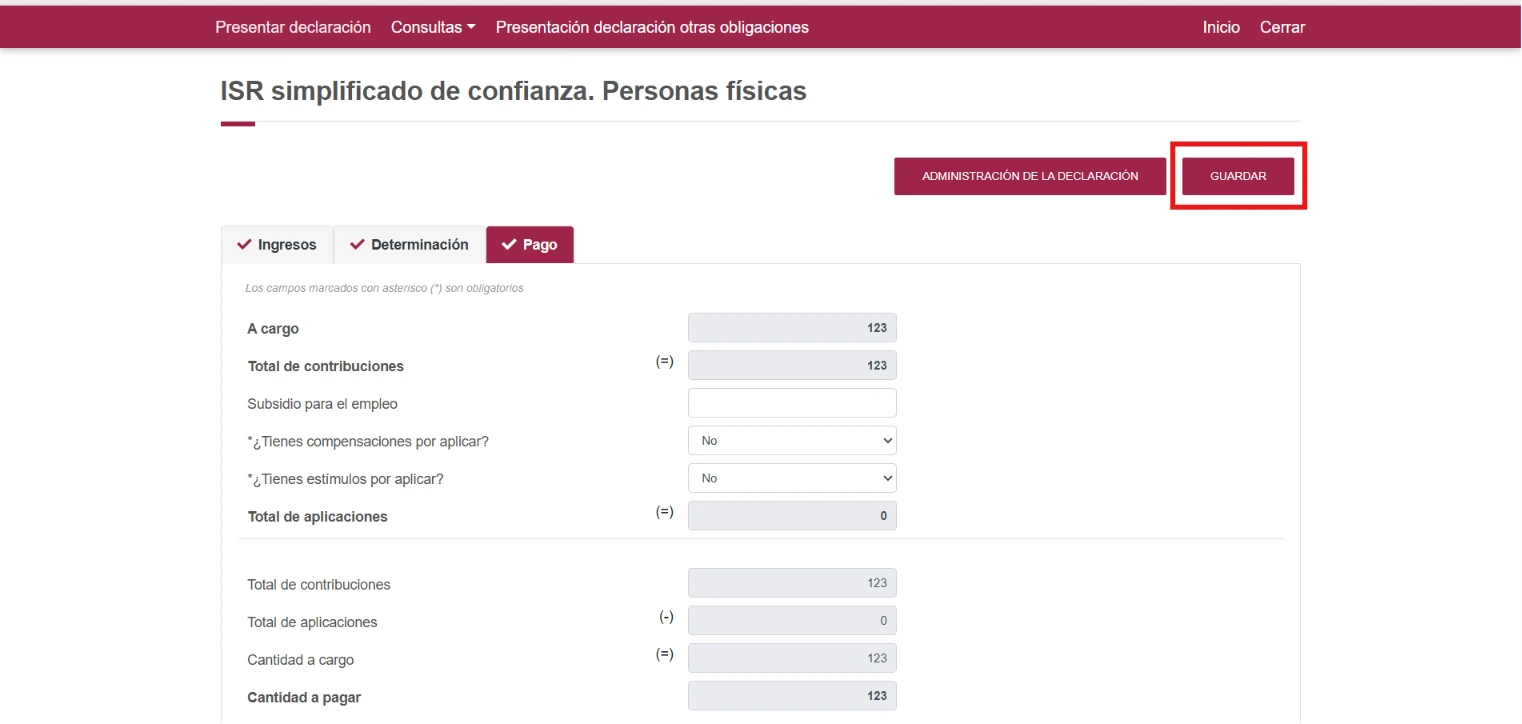
When the fields turn grey, select Guardar. Then go back to the main Administración de la declaración panel.
Fill in the IVA
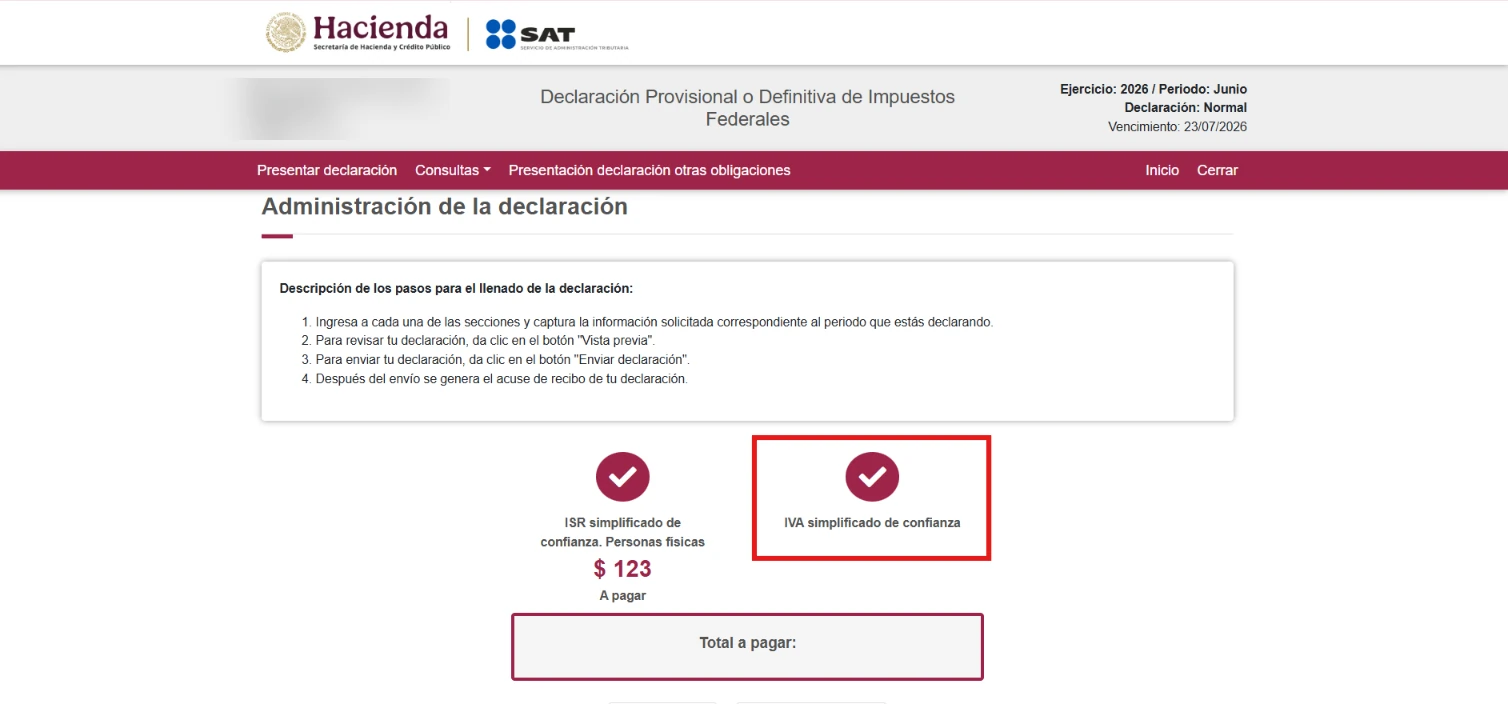
Open IVA simplificado de confianza.
Determinación tab
Review your transactions taxed at the 16% and 0% rates.
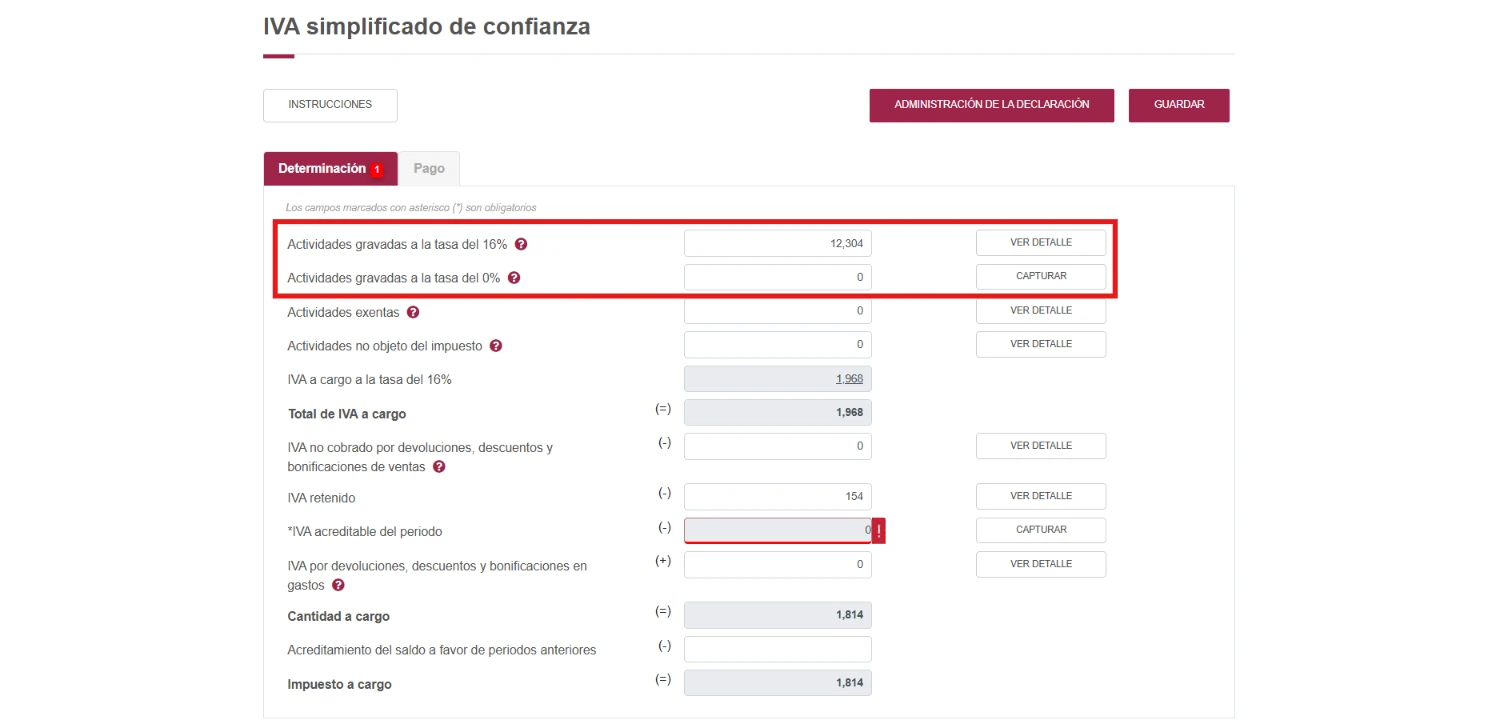
IVA acreditable del periodo. Select Capturar. In the IVA pagado en gastos y adquisiciones field, enter the creditable IVA from your business expenses and purchases. Enter 0 if you have no creditable IVA.
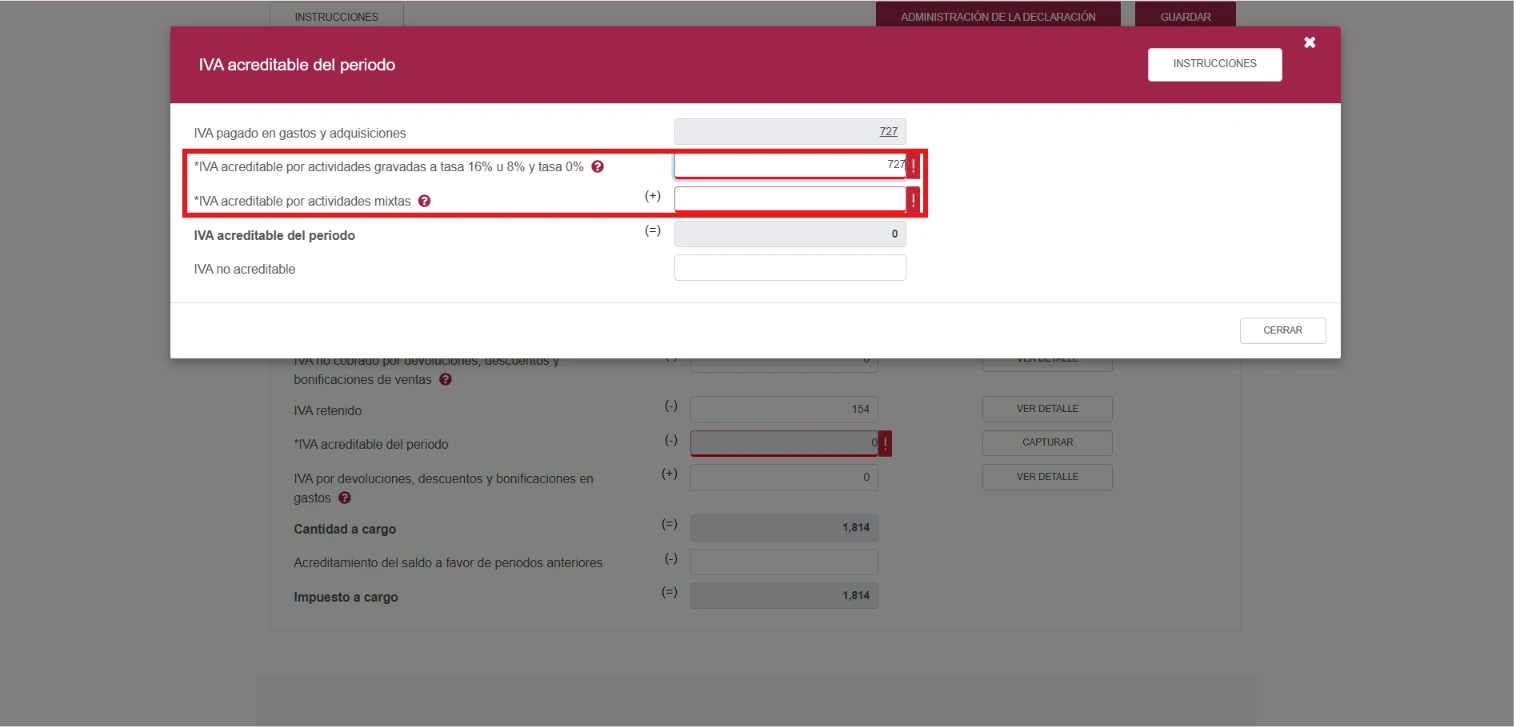
Important: Do not manually increase the creditable IVA without correct invoices and payment receipts. The expense has to be related to your activity.
Pago tab
Answer No to the questions about offsets or incentives. Then select Guardar and go back to the Administración de la declaración panel.
Review and send the return
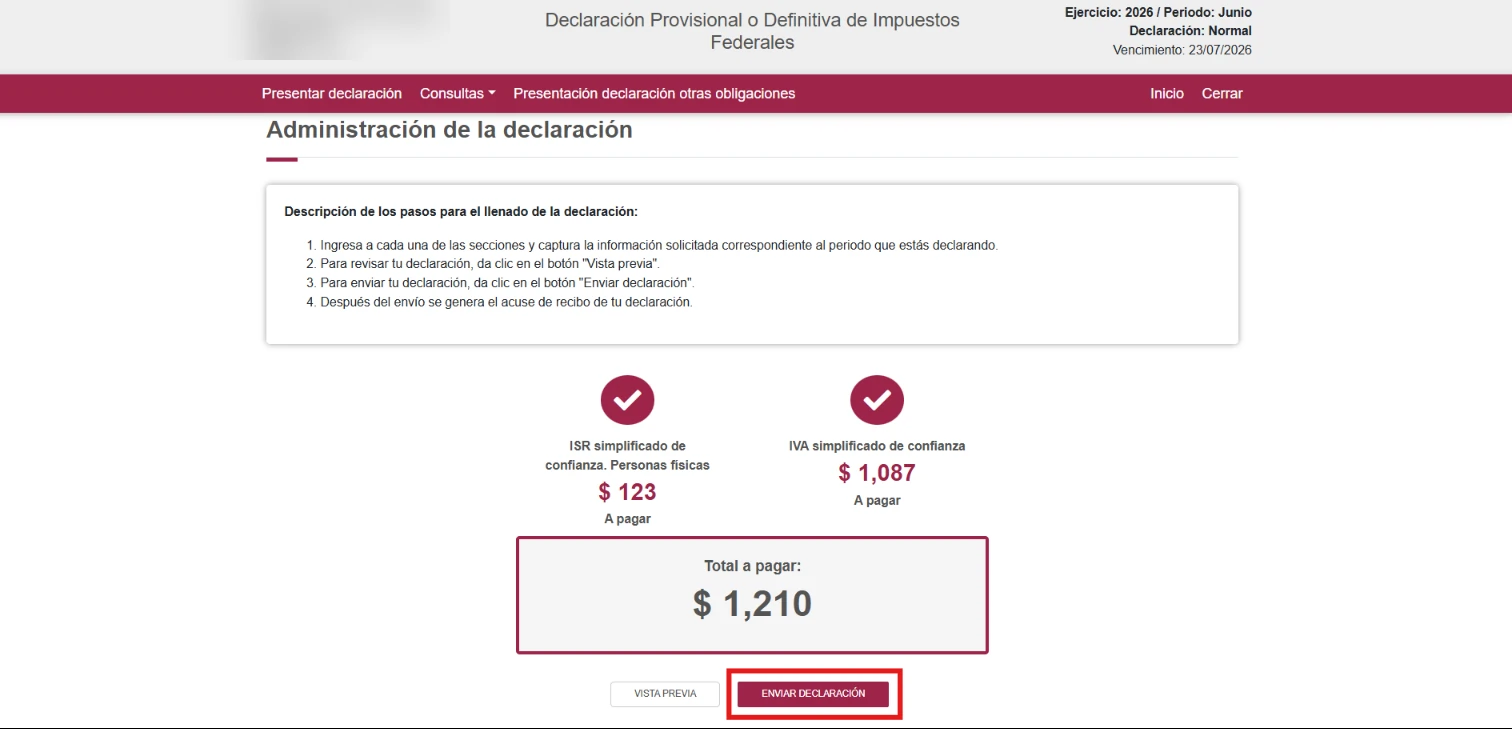
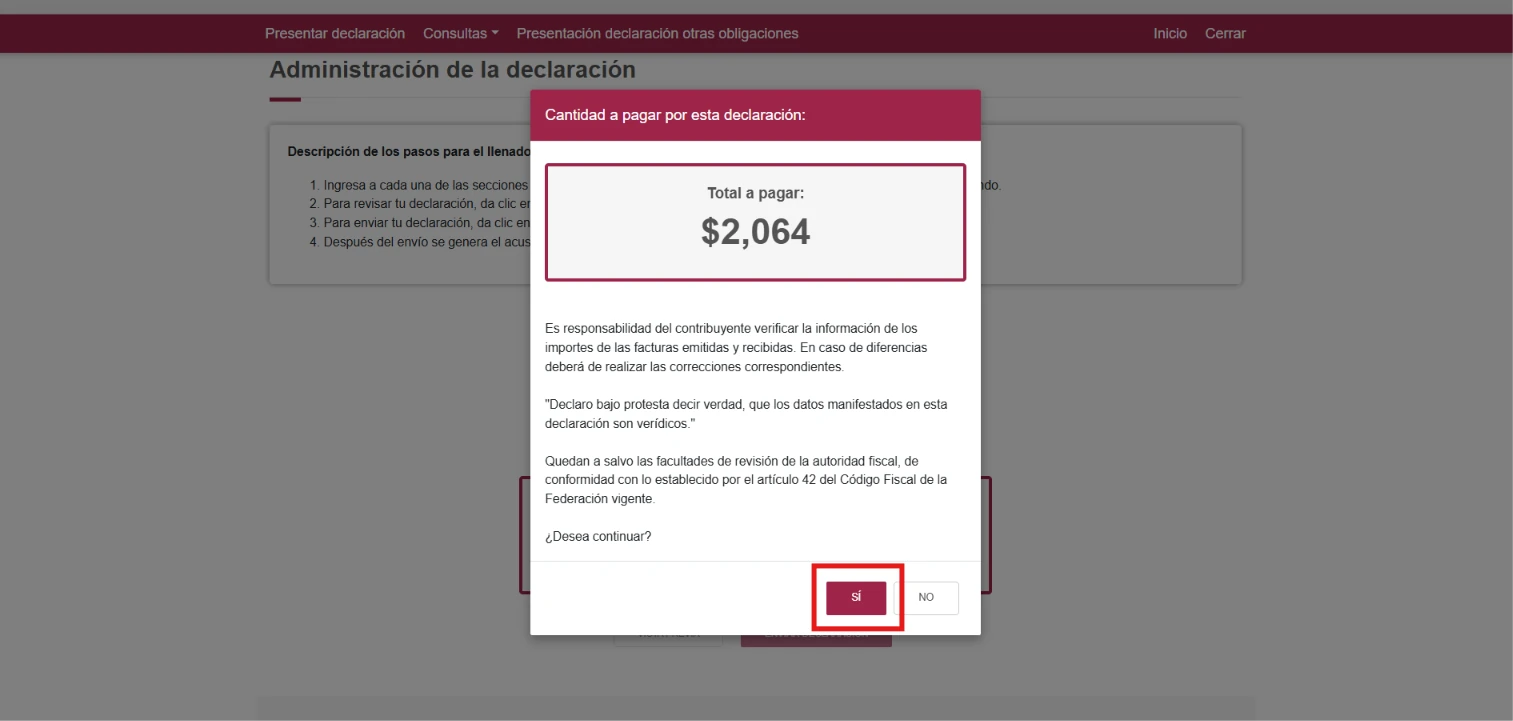
In the panel, review the Total a pagar. Select Vista previa to review your return. If everything is correct, select Enviar declaración and confirm with Sí.
Download your filing receipt
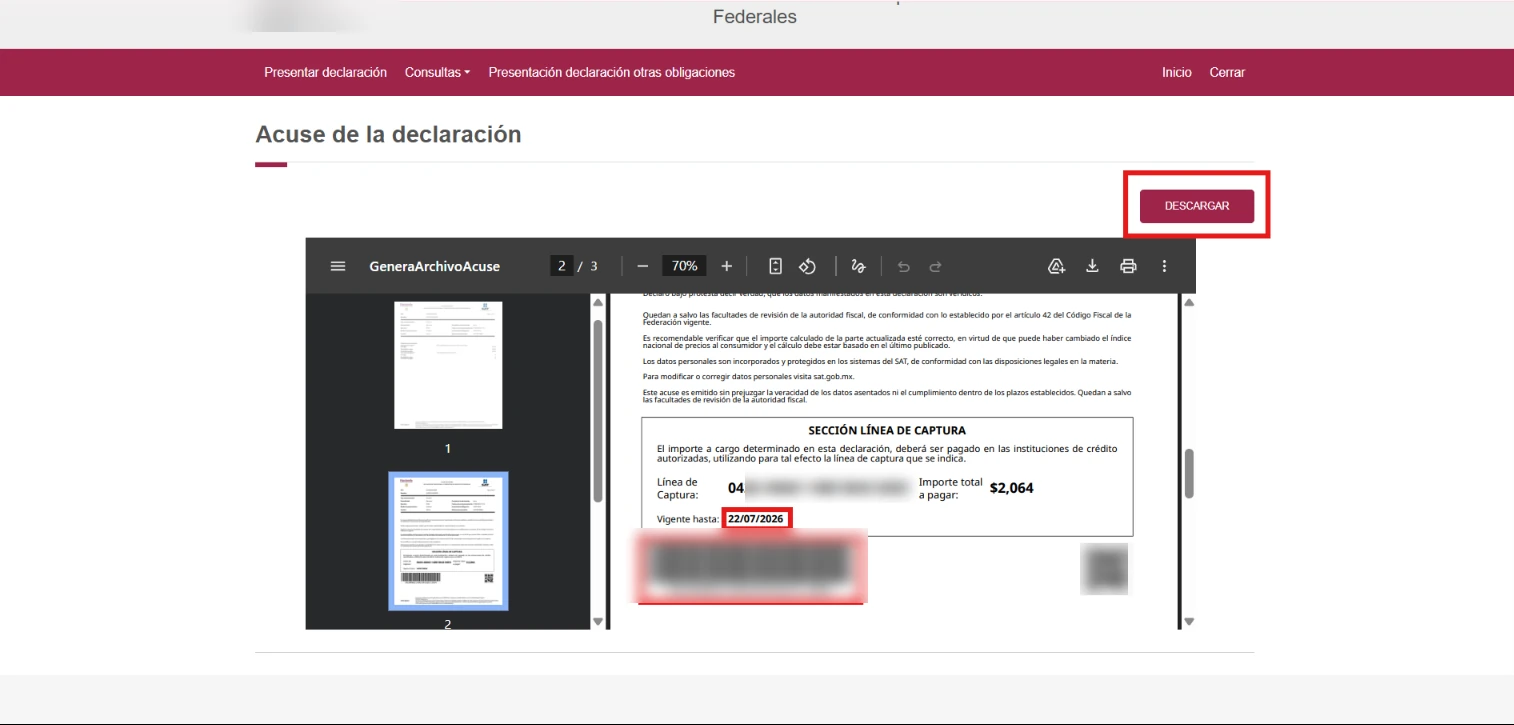
The system will generate a filing receipt. If you have an amount due, this document will include your payment reference, shown as Línea de captura, a barcode, the amount and the payment deadline.
Select Descargar and save the file.
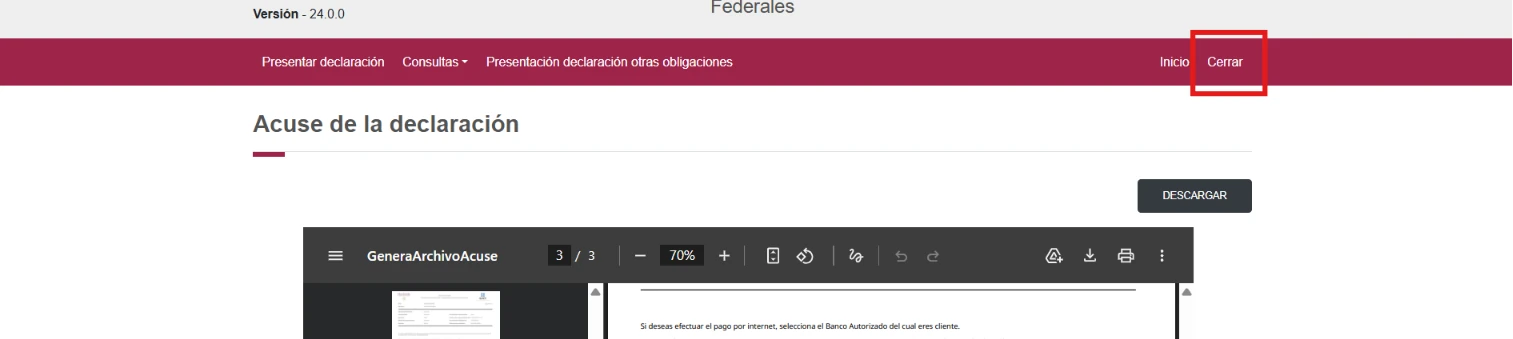
Important tip: When you finish, always log out with the Cerrar button.
If you only close the browser window, the system can block your session the next time you try to log in.
How to pay
You can pay at the counter of any authorized bank branch with your printed receipt.
You can also pay online from your bank app in Mexico:
1. In your app, open Pay services or taxes, choose New and then SAT (Pago referenciado SAT)
2. Enter the 20 digits of the Línea de captura manually or scan the barcode
3. Check that the amount is correct before you authorize the payment
Important: If you do not pay before the deadline, banks will reject the expired línea de captura.
To generate a new one, file a complementary return or update the obligation in the portal. Late payments can generate inflation adjustments and applicable surcharges.
Regulatory framework
This guide is based on official sources. You can check them to review the main rules on RESICO obligations, deadlines, invoices, payments and creditable IVA.