How to get your Certificado de Sello Digital (CSD)
A CSD is required to sign and issue CFDIs through authorized providers like Luna Soft.
Your information is secure, we only use it to issue CFDIs on your behalf and cannot access or perform any other actions.
In person
Schedule an appointment on the website and go to the SAT office to request your CSD. You’ll need your e.firma (FIEL) and password.
Online
Request your CSD through the SAT website by following the steps below.
Step 1. Download and install Java 8
The SAT application requires Java. If you don't have it, download and install it.
Download JavaStep 2. Download the SAT Certifica application
Go to the SAT website and download the Certifica application. Select the 64-bit version (recommended for most computers).
Download Certifica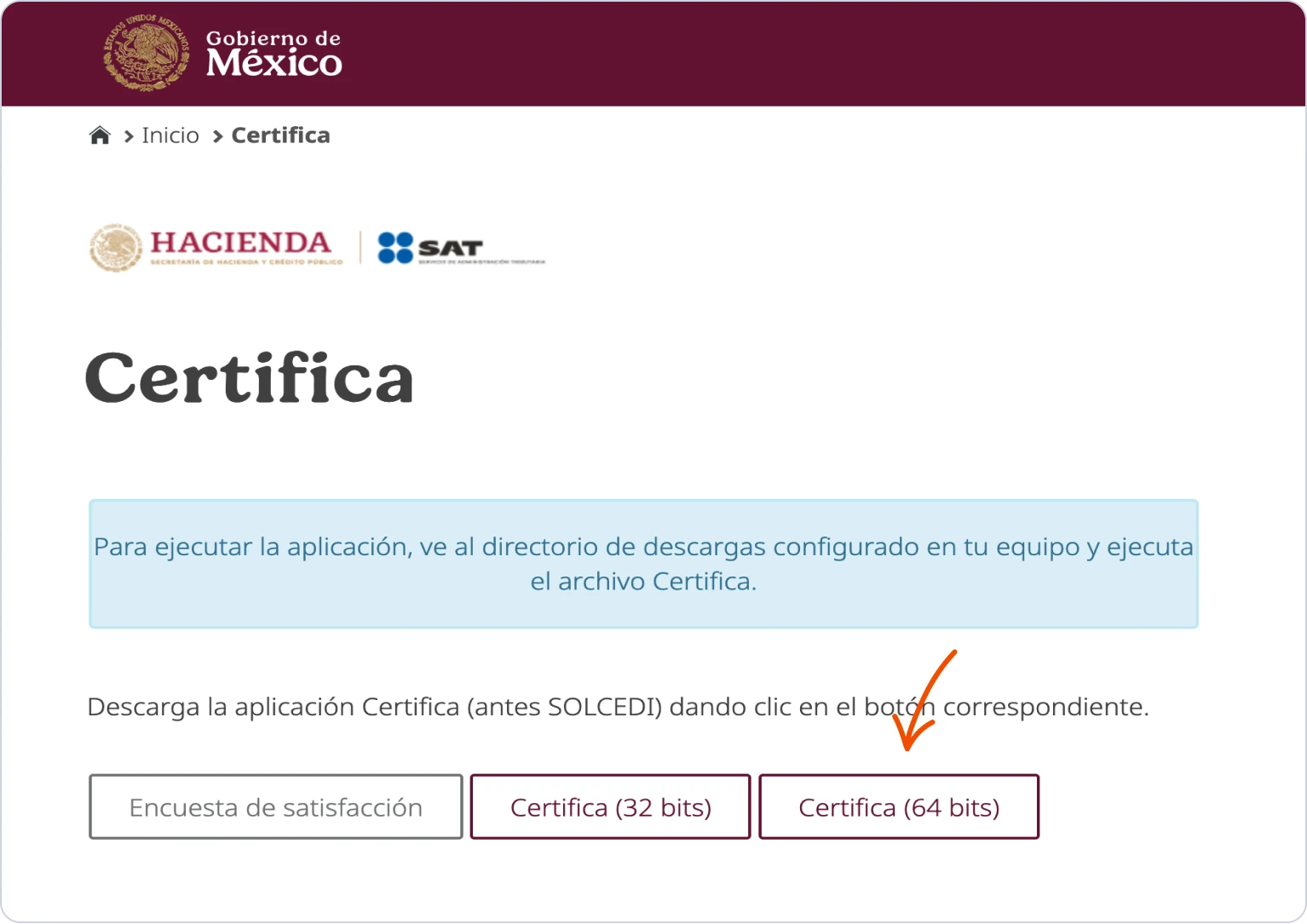
Step 3. Generate the CSD Request File
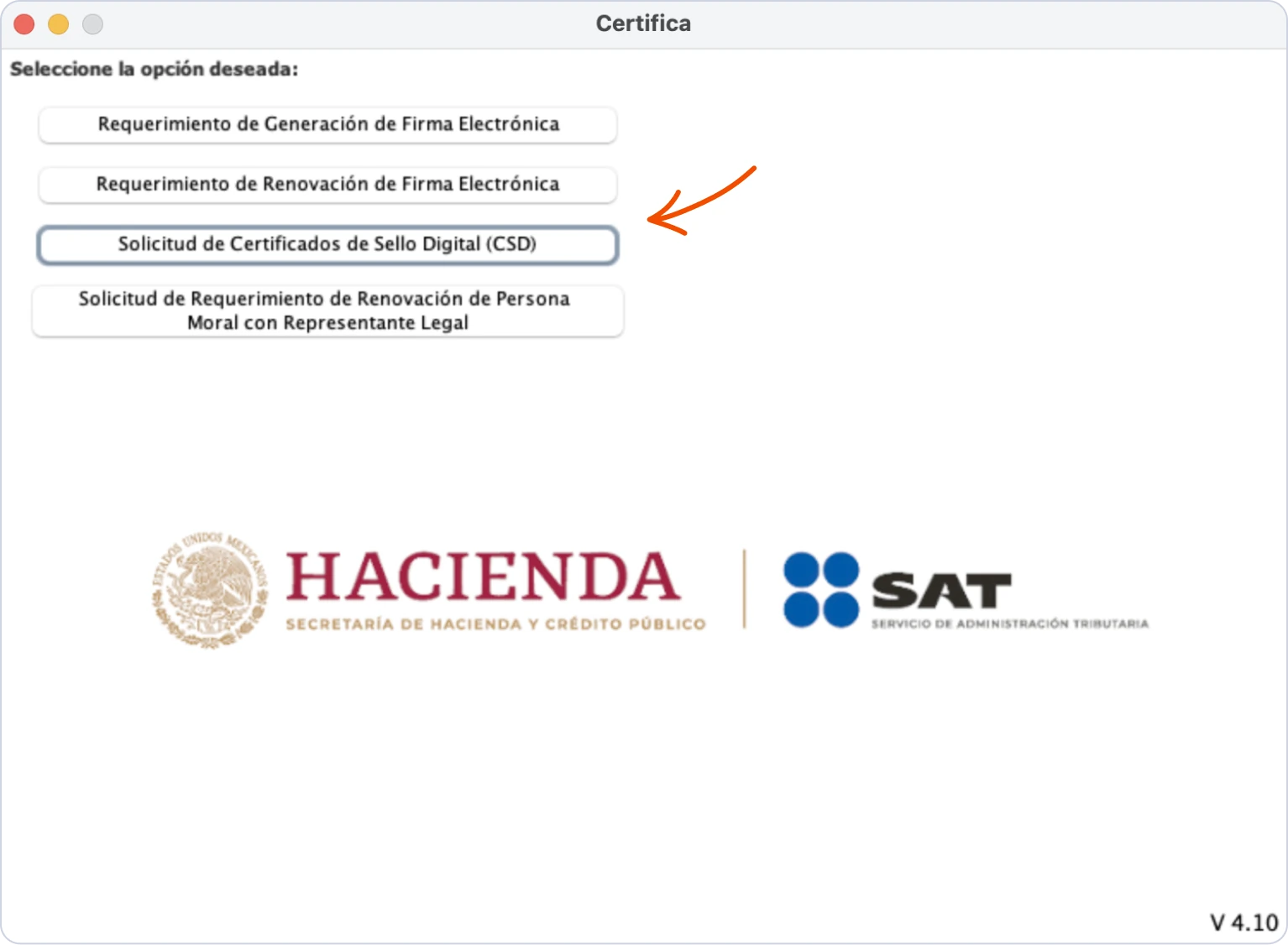
Open the Certifica application, select “Solicitud de Certificados de Sello Digital (CSD)” and follow the instructions. The application may take about a minute to load.
Step 4. Upload your e.firma
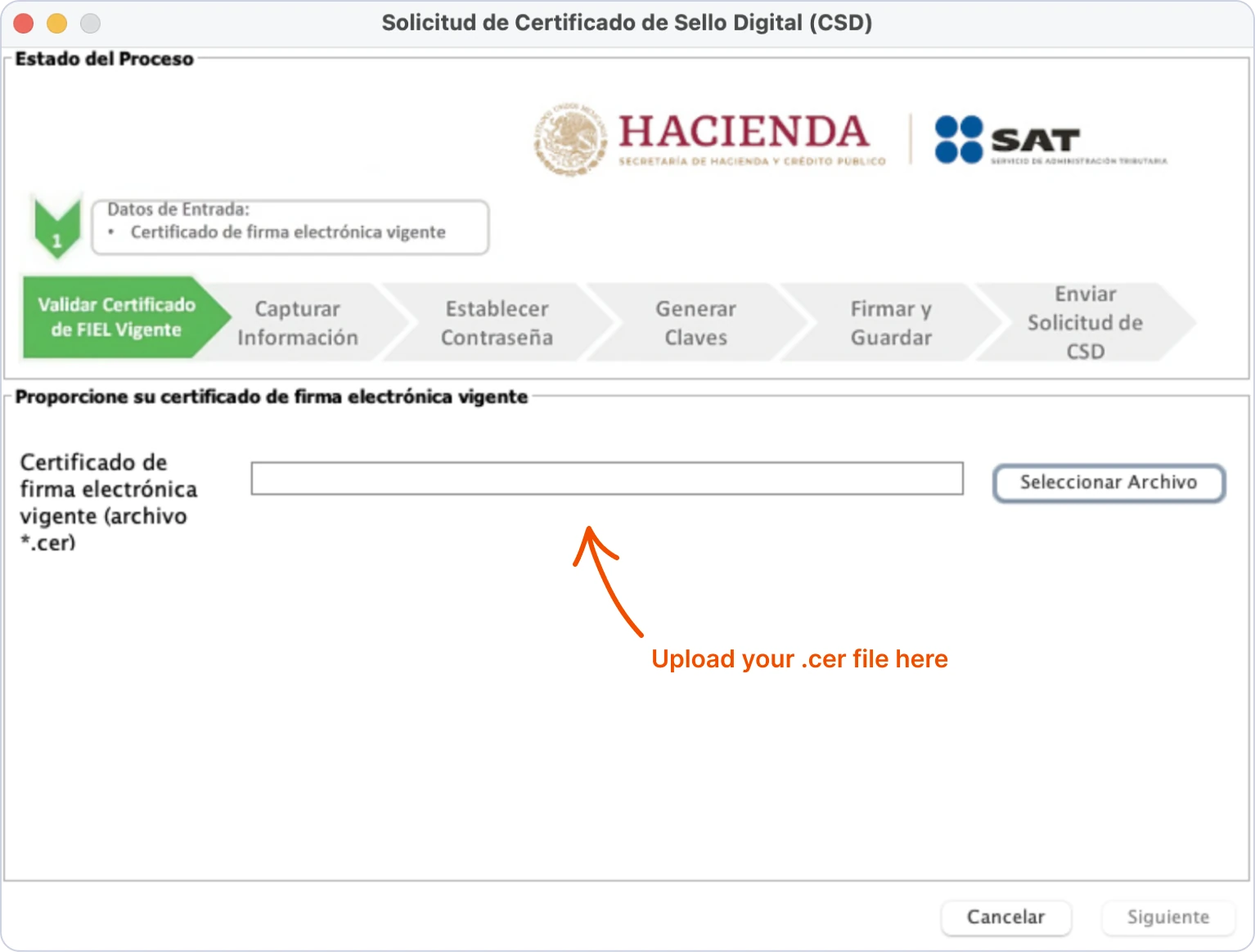
The application will request your valid e.firma files:
① Upload your valid electronic signature certificate (.cer)
② Upload your private key file (.key) and enter its password
Step 5. Enter the CSD details
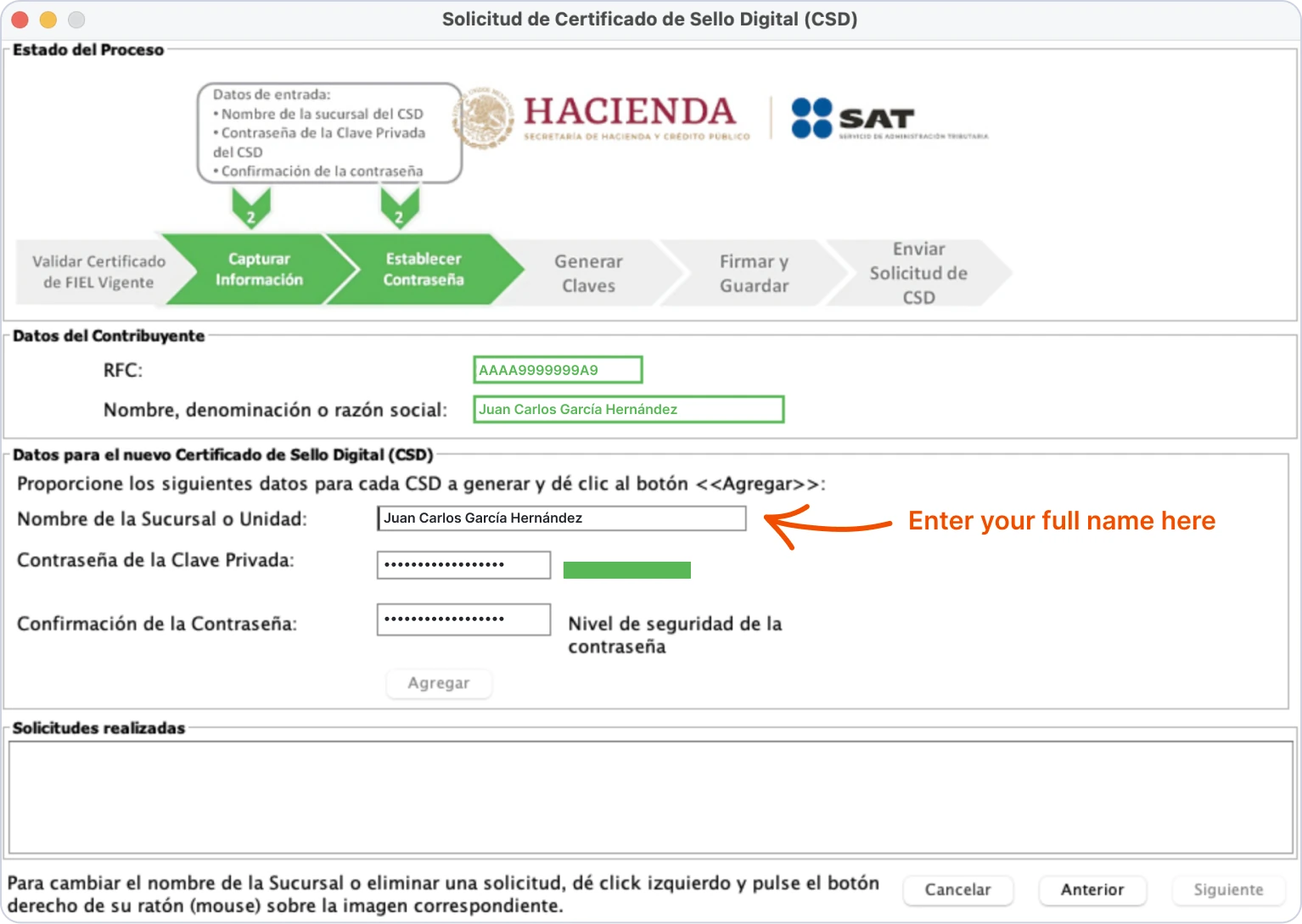
Enter the required information:
① In "Nombre de la Sucursal o Unidad", enter your full name or the branch name
② Create and confirm a password for your CSD private key, save this password securely
③ Click "Agregar" and then "Siguiente" to continue
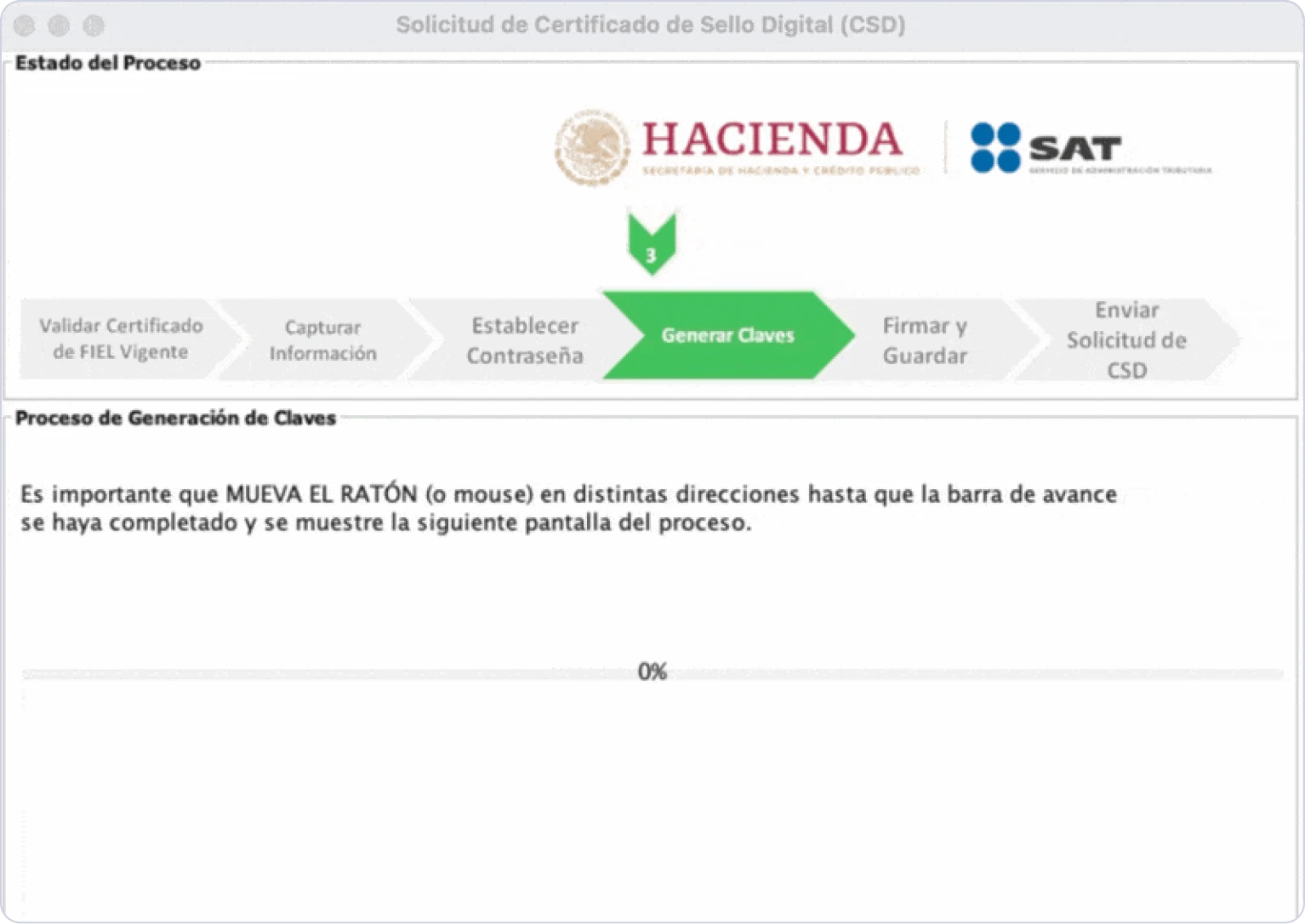
Step 6. Generate the keys
Move your mouse in different directions until the progress bar reaches 100%. This process generates your keys.
Step 7. Sign and save
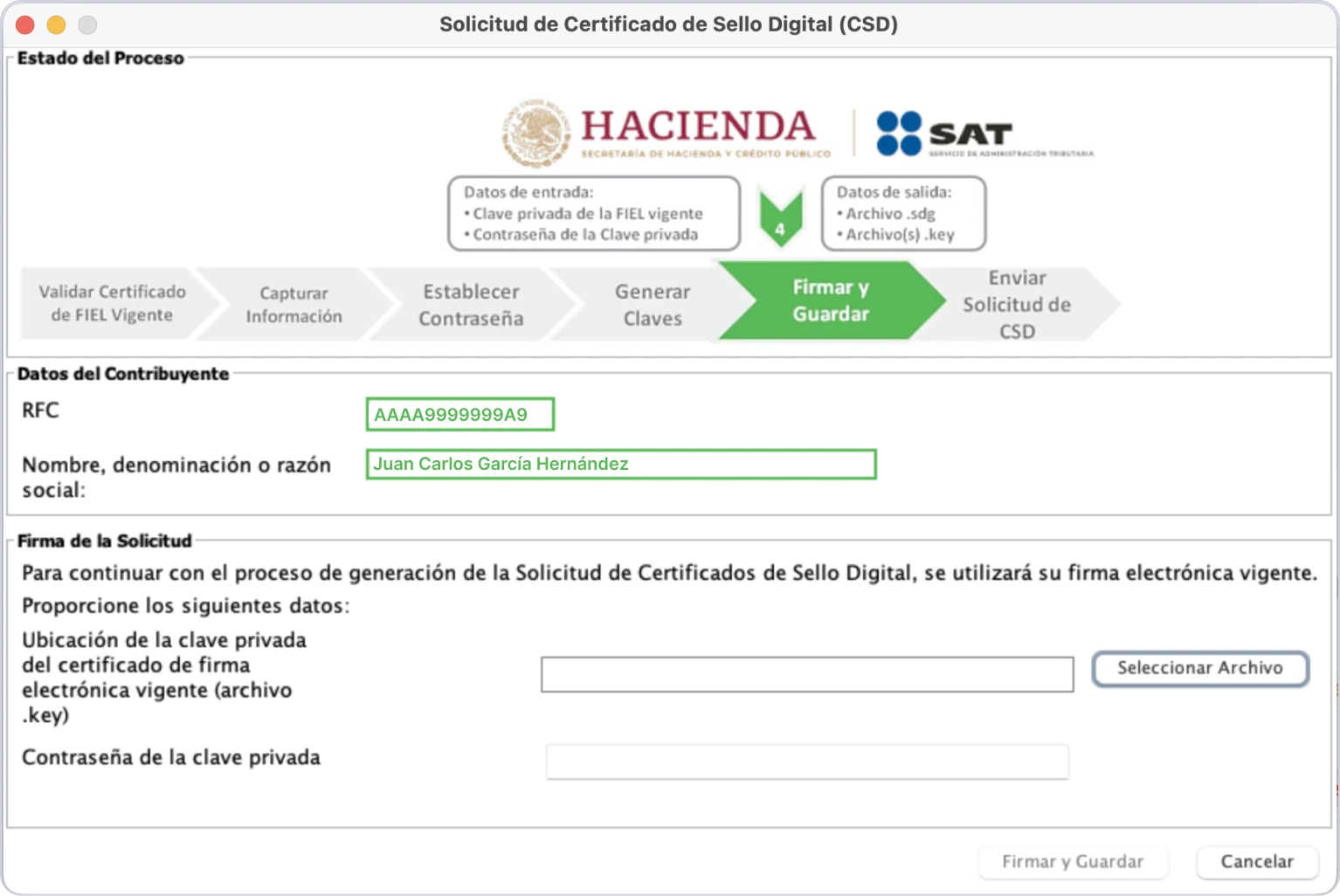
Sign your request to complete the process:
① Upload your e.firma private key file (.key)
② Enter your e.firma private key password
③ Click "Firmar y Guardar"
Step 8. Save the files
The system will generate 2 files. Make sure to save them securely:
• CSD request file (.sdg), used to submit your CSD request to the SAT
• CSD private key file (.key), you’ll need it later to issue CFDIs
Once you have saved the files, click "Terminar"
Step 9. Log in to CertiSAT Web
⌛ The SAT website may be slow during:
• The 3rd and 17th of each month
• The end of March
• The end of April
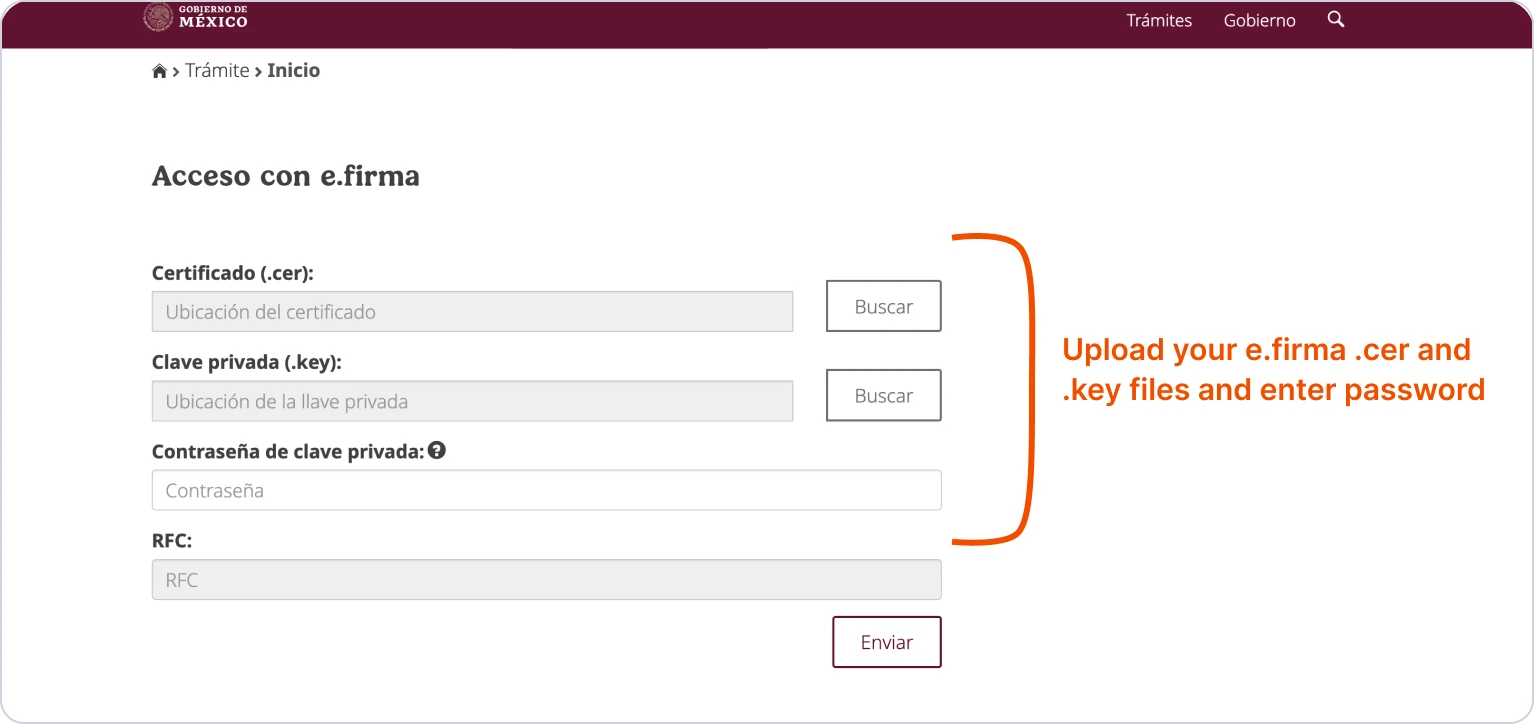
① Log in to CertiSAT Web using your e.firma:
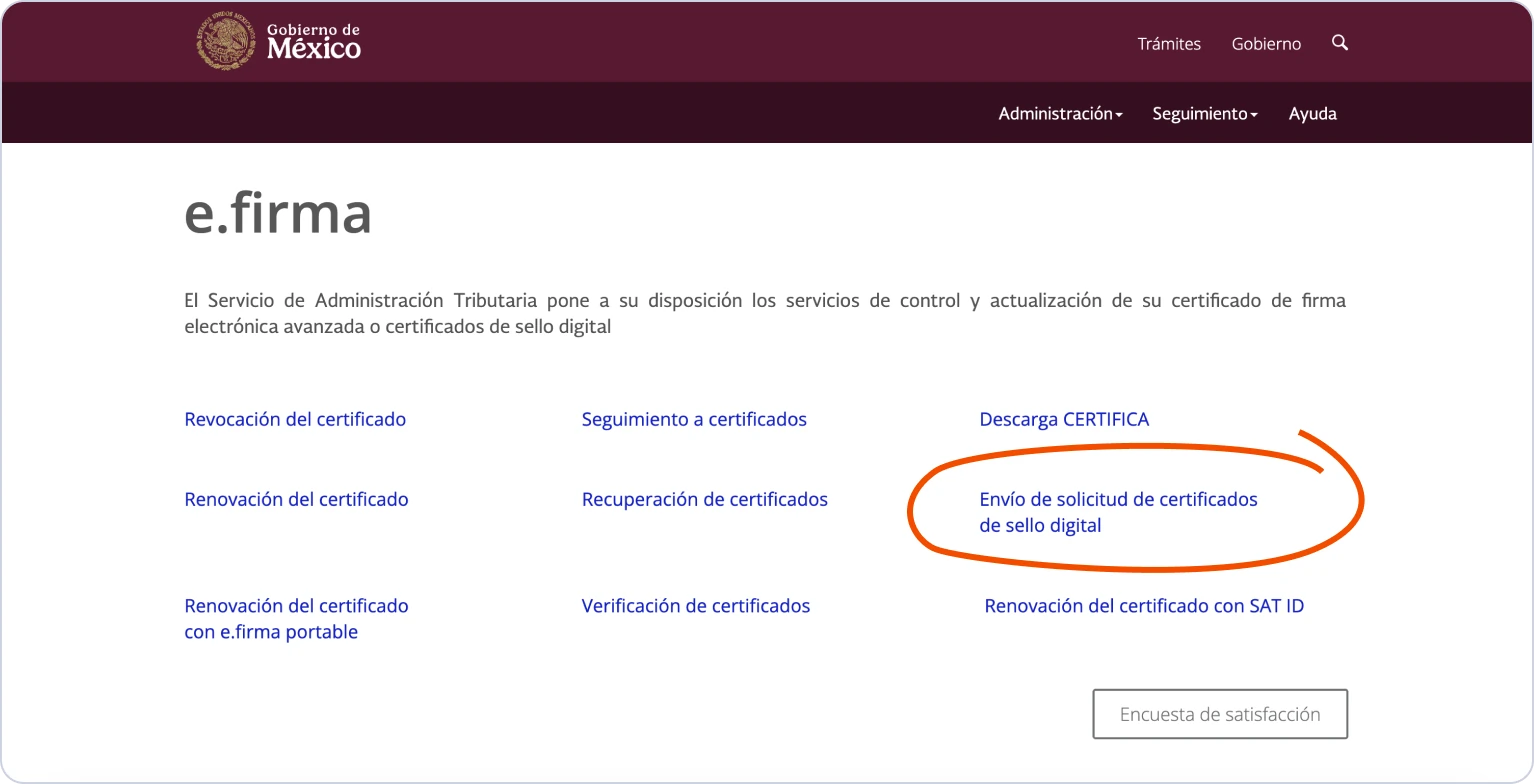
② Select "Envío de solicitud de certificados de sello digital":
Step 10. Submit request
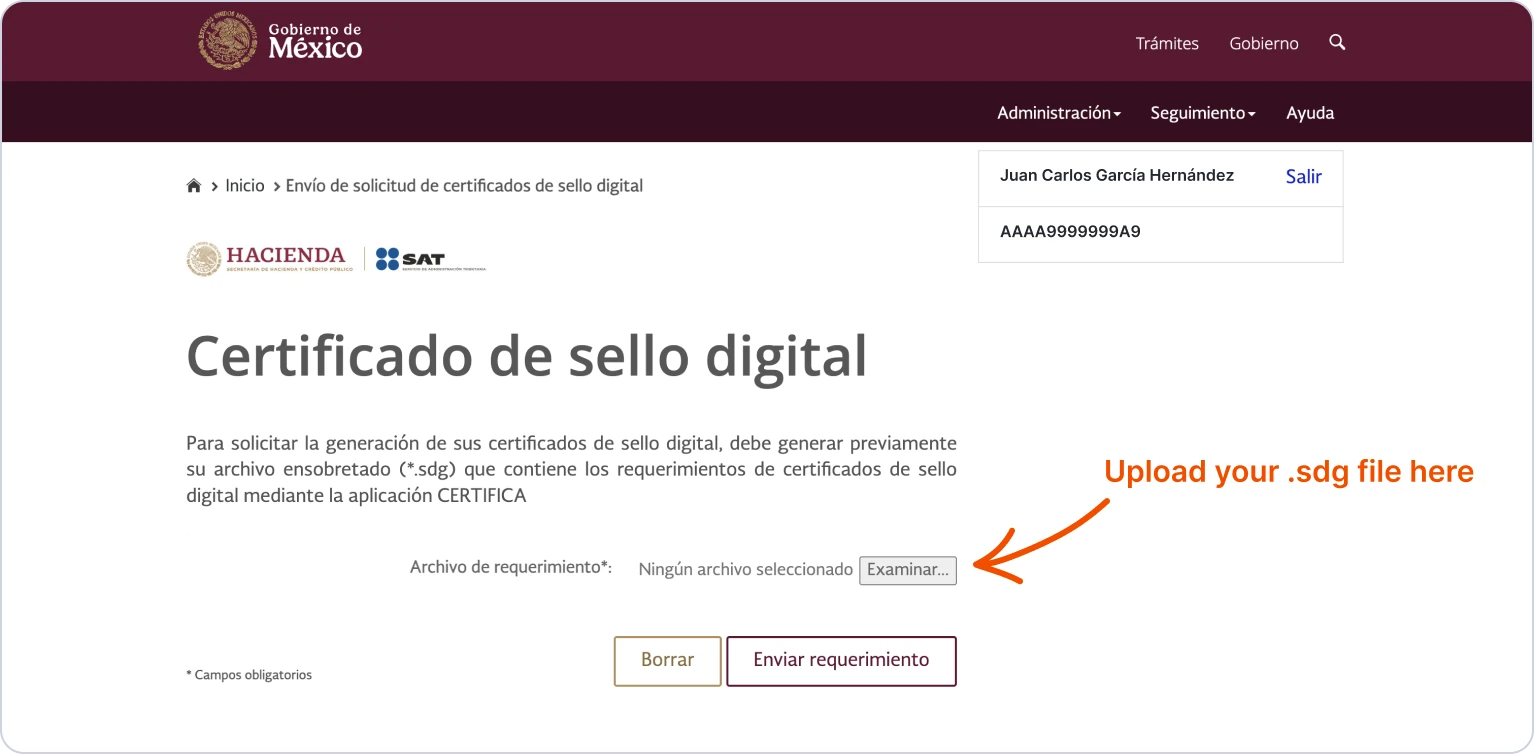
Upload the CSD request file (.sdg) you generated earlier, click "Enviar requerimiento". The process can take about 5 minutes.
⌛ Wait for about 5 minutes, don’t close this page
The SAT is processing your request
Step 11. Receive confirmation
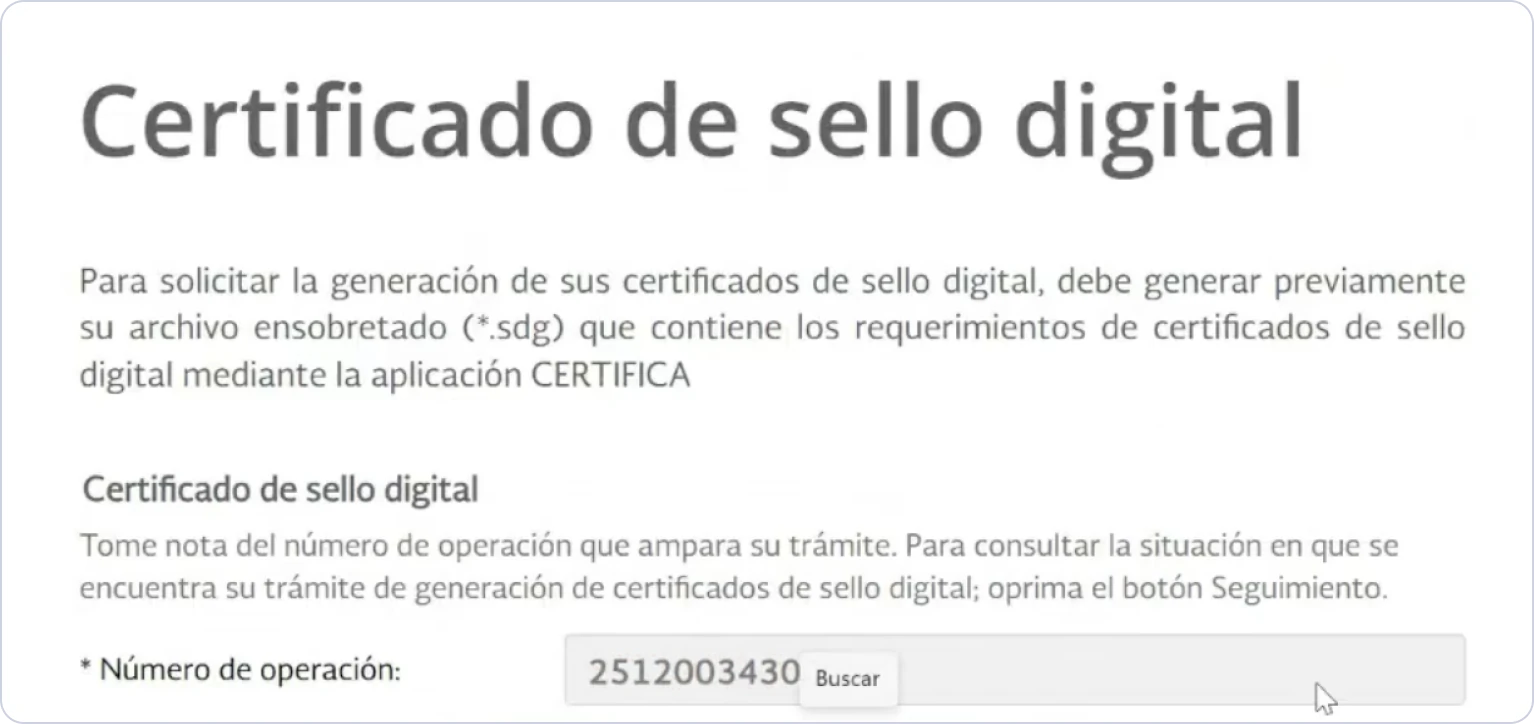
The certificate request process may finish successfully or show an error. A successful request will display a “Número de operación”:
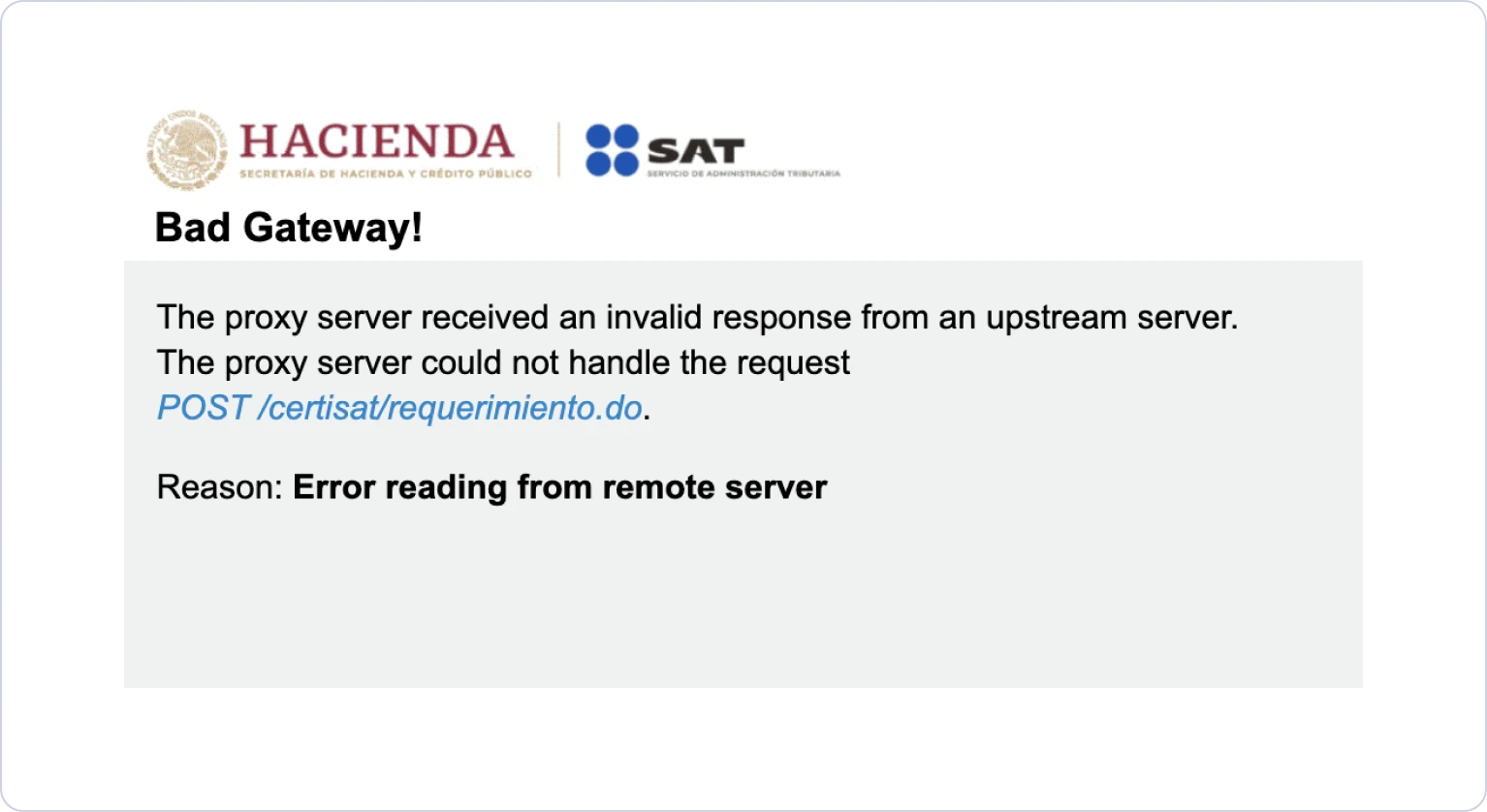
If you see a “Bad Gateway” error, your request may have been processed. Check your certificate status to confirm whether the request was processed.
Step 12. Retrieve the certificate
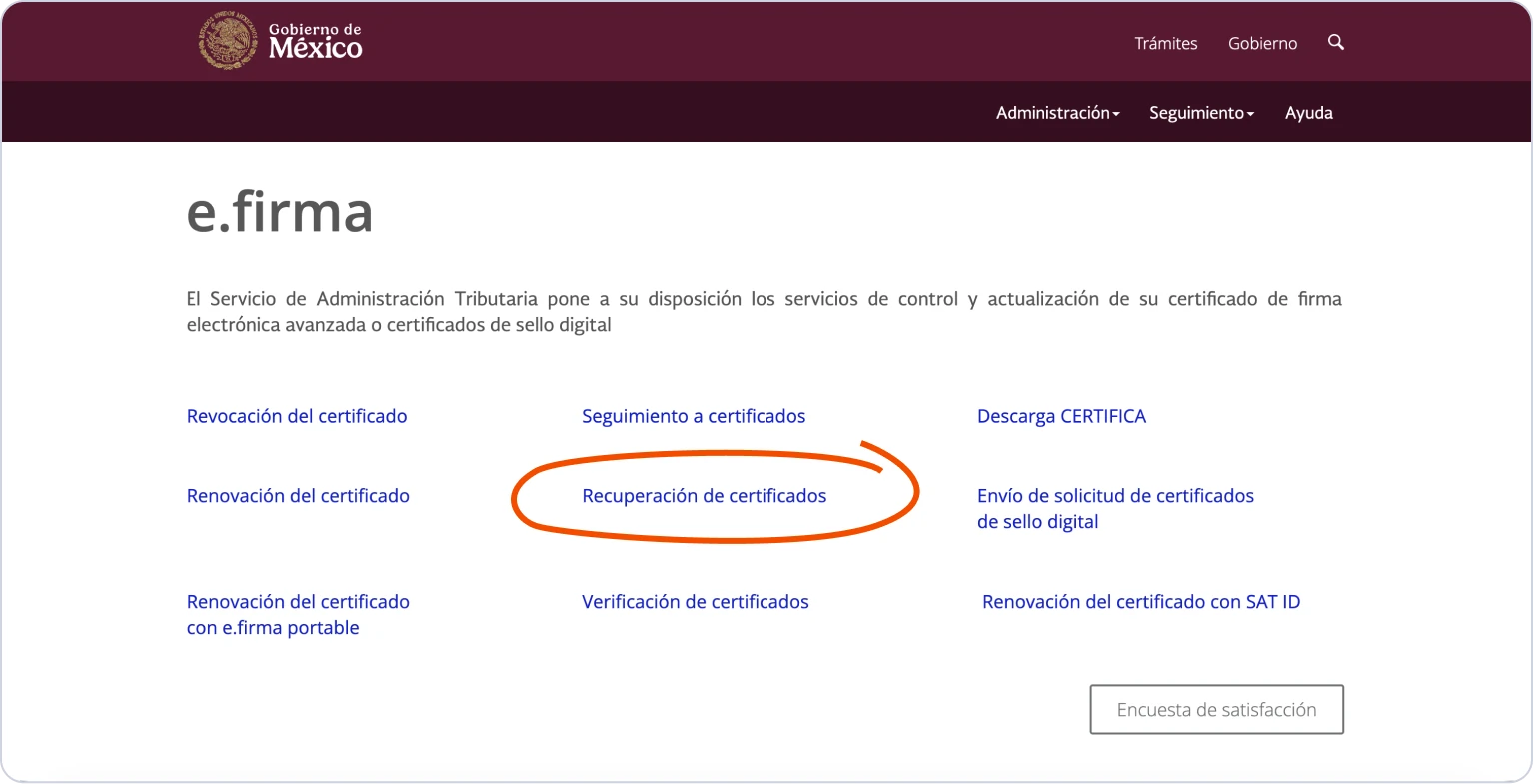
① Go to "Seguimiento" and select "Recuperación de certificados"
② Enter your RFC and click "Buscar"
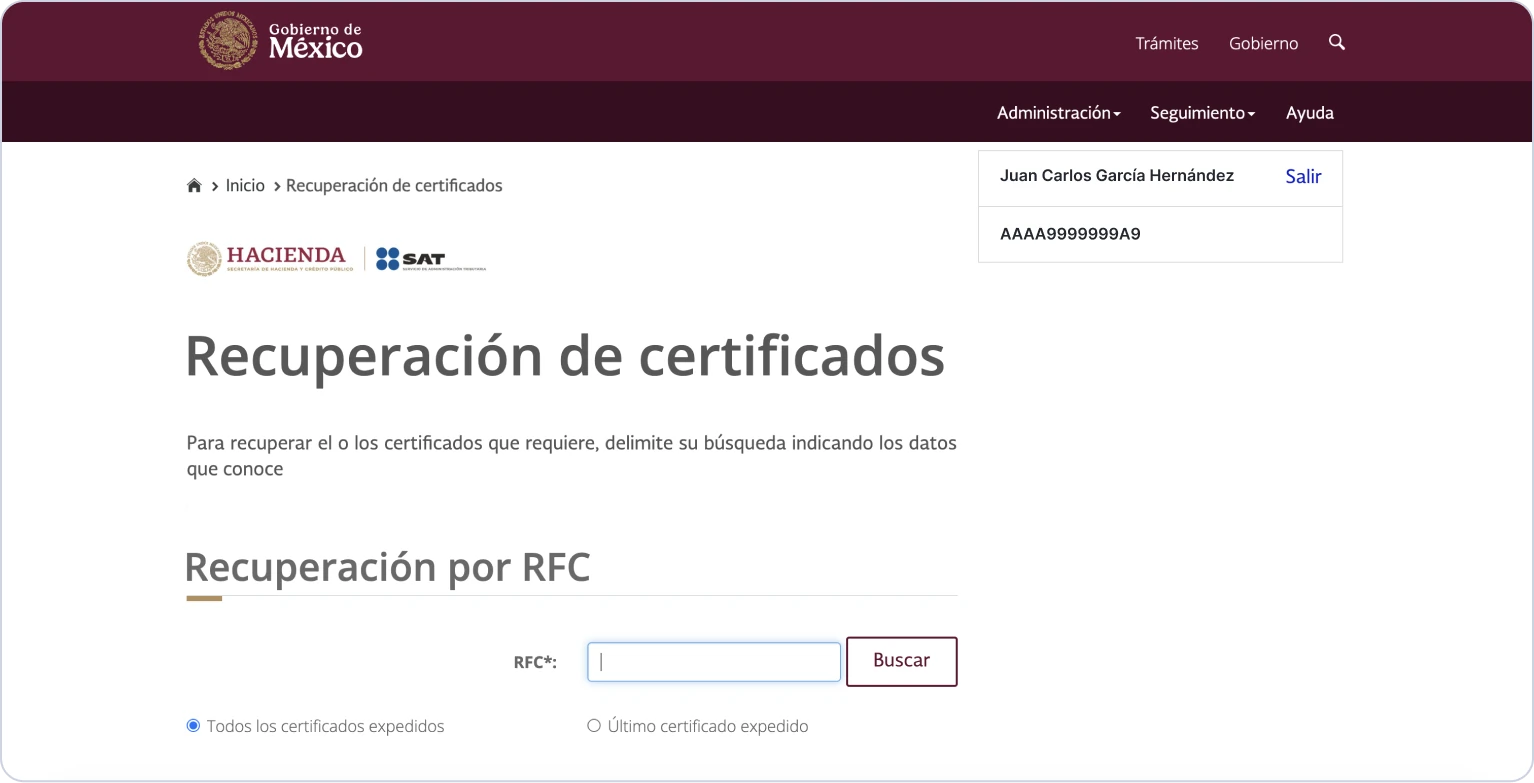
③ If you don’t see your new CSD certificate yet, wait up to 5 minutes and refresh the page
⌛ Wait for about 5 minutes
SAT is generating your CSD
④ When you see SELLOS certificate with today’s “Fecha Inicial”, download CSD public certificate (.cer) file.
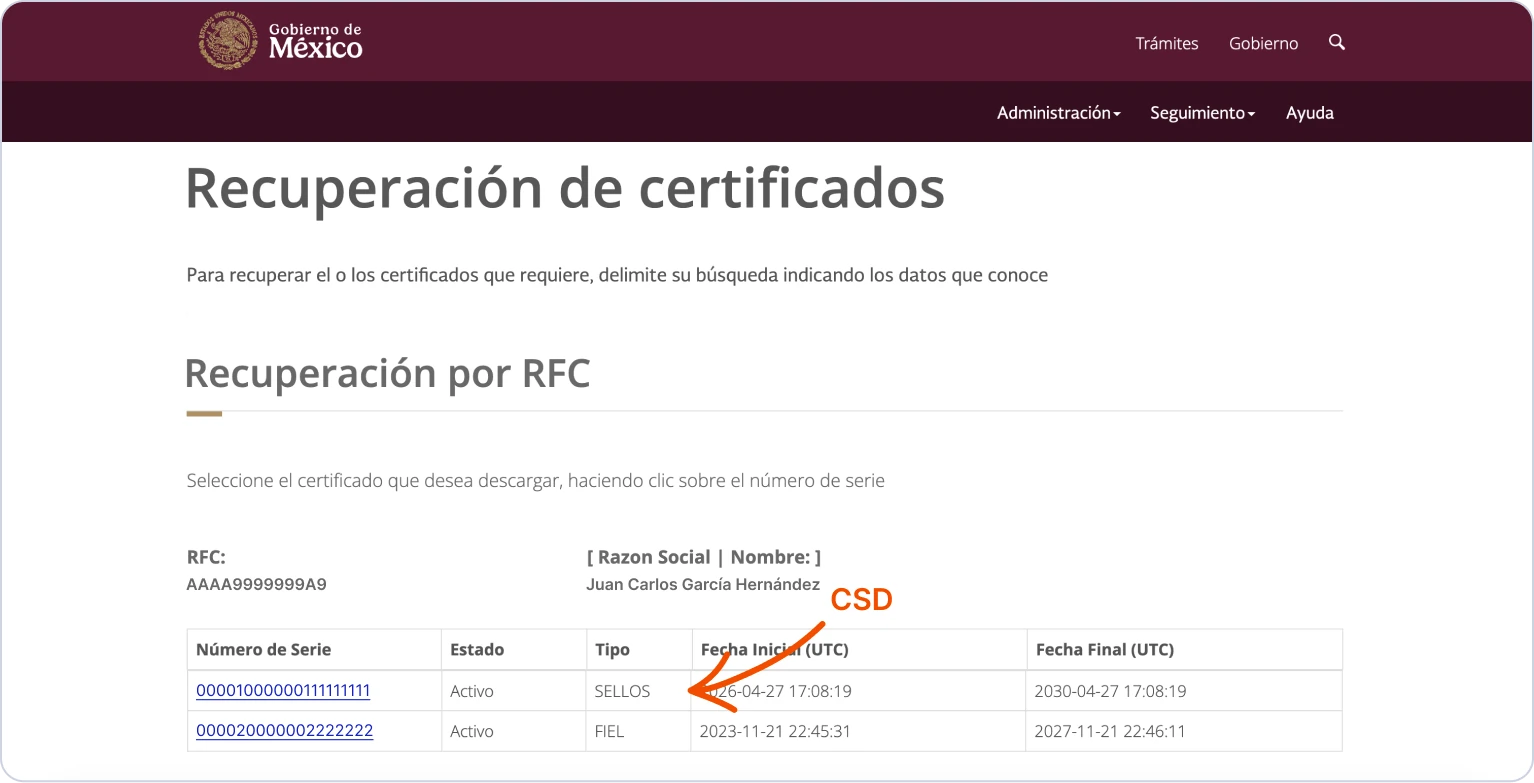
Step 13. Store your new CSD securely
Store your CSD files securely (the private key .key and the public certificate .cer), along with the password you created. You’ll need them later to upload your CSD and issue CFDIs.